If you have ever stared at a spreadsheet full of Kannada text and needed it in English, you know the manual copy-paste routine is a fast track to frustration. This guide shows you how to translate Kannada to English in Excel using two reliable methods. One works entirely inside Excel with a free add-in. The other taps into Google Sheets for a quick, formula-based solution. Both will save you hours.
Quick Answer: Excel has a built-in Translator function (under the Review tab) for cell-by-cell work, but for bulk translation, install the free “Functions Translator” add-in or use the
=GOOGLETRANSLATE()formula in Google Sheets and then import the results back into Excel.
Why Direct Kannada to English Translation in Excel Gets Tricky
Excel does not ship with a native =TRANSLATE() function that handles Kannada script out of the box. The desktop version of Microsoft 365 includes a “Translate” button on the Review tab, but it sends text to Microsoft Translator and returns the result as an overlay, not a live cell formula. That means it won’t automatically update if your source text changes.
The real challenge is script recognition. Kannada uses a Brahmic script with complex conjunct consonants. Older versions of Excel or systems without Unicode support will display garbled characters instead of proper Kannada letters. Before you attempt any translation, confirm your Excel file is saved in .xlsx format and your system locale supports Unicode UTF-8 encoding.
| Method | Bulk Capable | Formula-Based | Requires Add-in | Accuracy |
|---|---|---|---|---|
| Excel Review Tab Translator | No | No | No | High (Microsoft Translator) |
| Functions Translator Add-in | Yes | Yes | Yes | High (Microsoft Translator) |
| Google Sheets GOOGLETRANSLATE | Yes | Yes | No | High (Google Translate) |
| VBA with Google API | Yes | Yes | Requires API key | Very High |
Pro Tip: If your Kannada text appears as boxes or random symbols, go to Data > Get Data > From File and re-import the CSV or text file specifically choosing 65001: Unicode (UTF-8) as the file origin.
Method 1: Using Excel’s Built-in Translator and Functions Add-in
This method keeps everything inside Excel and uses Microsoft’s translation engine, which handles Kannada well.
Step 1: Install the Functions Translator Add-in
Open Excel and head to Insert > Get Add-ins. In the Office Add-ins store, search for “Functions Translator” (published by Microsoft). Click Add and agree to the permissions prompt. A new “Functions Translator” button will appear on your Home tab ribbon.
The add-in was built primarily to help users convert function names between languages, but it includes a dictionary and translation pane that works for cell content translation in bulk.
Step 2: Set Your Language Pair
Click the Functions Translator button. In the pane that opens on the right, locate the dictionary section. Set the From language to Kannada and the To language to English. The add-in uses the same Microsoft Translator engine that powers Bing and Skype.
Step 3: Translate a Single Cell as a Test
Type or paste a Kannada word in cell A1, for example: ನಮಸ್ಕಾರ. In cell B1, enter this formula:
=WEBSERVICE("https://api.microsofttranslator.com/V2/Http.svc/Translate?appid=Bearer "&"YOUR_API_KEY&text="&A1&"&from=kn&to=en")
That formula requires a Microsoft Azure Translator API key, which is a paid service. For a free, no-key approach inside Excel, skip the formula and use the Functions Translator pane’s lookup feature. Select the Kannada cell, open the add-in, and it will display the English equivalent in the pane. You can then copy it down manually, or record a quick macro to loop through cells.
Pro Tip: For small datasets under 50 cells, the manual lookup with the Functions Translator pane is genuinely faster than setting up an API connection. Don’t overengineer a solution for a handful of translations.
Method 2: Translate in Google Sheets and Bring the Results into Excel
Google Sheets has a killer feature Excel lacks: a native GOOGLETRANSLATE function that works with zero setup and supports Kannada natively.
Step 1: Upload Your Excel File to Google Sheets
Go to sheets.google.com and click the folder icon to upload. Drag your .xlsx file in. Google Sheets will convert it automatically. Your Kannada text should display correctly because Google Drive uses UTF-8 by default.
Step 2: Apply the GOOGLETRANSLATE Formula
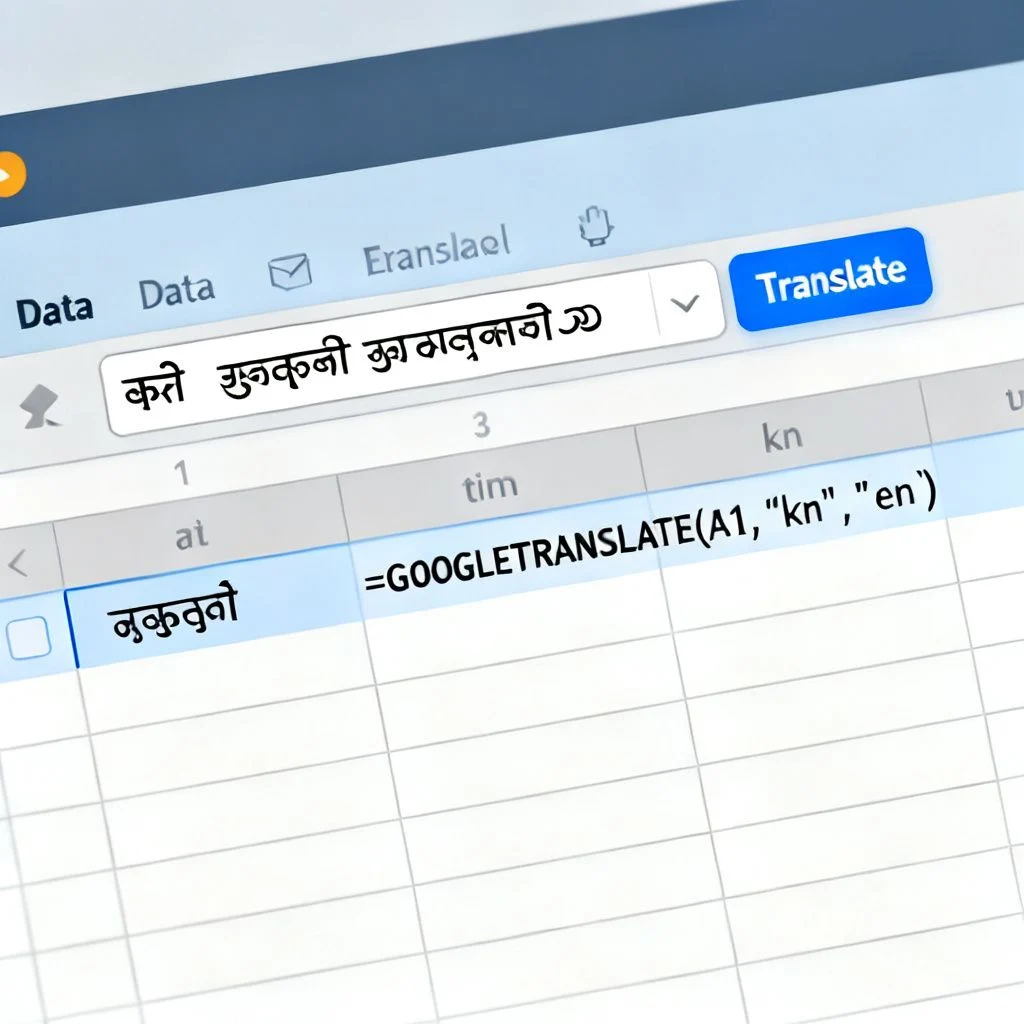
Assume your Kannada text sits in column A, starting at A1. In cell B1, enter:
=GOOGLETRANSLATE(A1, "kn", "en")
The first argument is the cell reference. "kn" is the ISO 639-1 code for Kannada. "en" is English. Press Enter. The translated text appears almost instantly.
Drag the formula down by clicking the small blue square at the bottom-right corner of B1 and pulling it down to cover all rows. Google Sheets will translate every cell. This function handles entire paragraphs, not just single words.
Step 3: Copy Results Back to Excel
Select the entire translated column. Press Ctrl+C to copy. Open your original Excel workbook. Right-click on the destination cell and under Paste Options, choose Values (V). This pastes the plain translated text without any Google Sheets formulas or formatting quirks.
Pro Tip: If you have more than a few hundred rows, the
GOOGLETRANSLATEfunction may occasionally return a loading error on a few cells. Just re-enter the formula on those specific cells. It’s a rate-limiting quirk, not a failure.
Handling Formatting and Special Characters After Translation
Kannada text often contains numerals, punctuation, or mixed-script words. After translation, you might see extra spaces, line breaks, or stray characters. Use the =TRIM() and =CLEAN() functions in Excel to strip non-printing characters and remove leading or trailing spaces.
For example, if your translated English text is in column B, put this in column C:
=TRIM(CLEAN(B1))
This removes carriage returns, non-breaking spaces, and other invisible gremlins that sometimes hitch a ride during the translation process.
Key Takeaways
- Excel’s Review tab Translator works for one-off cells but is not a bulk solution.
- The Functions Translator add-in from Microsoft provides dictionary lookups without leaving Excel, ideal for moderate lists.
- Google Sheets’
GOOGLETRANSLATEfunction is the fastest free method for translating entire columns of Kannada to English. - Always paste results as Values when bringing data back into Excel to avoid formula dependency issues.
- Use
=TRIM(CLEAN())on translated output to fix formatting artifacts.
Frequently Asked Questions
Q: Can Excel’s built-in Translate feature handle Kannada script?
A: Yes. The Translate button on the Review tab in Microsoft 365 sends text to Microsoft Translator, which supports Kannada. It returns the translation in a side panel, not directly into a cell as a formula.
Q: Is there a formula to translate Kannada to English directly in Excel?
A: There is no single built-in Excel formula that translates Kannada to English without an API. You can use the =WEBSERVICE() formula with a Microsoft Azure Translator API key, or use Google Sheets’ =GOOGLETRANSLATE() and import the results.
Q: How do I install the Functions Translator add-in for Excel?
A: Go to Insert > Get Add-ins, search for “Functions Translator” by Microsoft, and click Add. It appears on the Home tab and provides a translation dictionary pane.
Q: Why does my Kannada text show as boxes in Excel?
A: This happens when the file is not encoded in Unicode UTF-8. Re-import the file using Data > Get Data > From Text/CSV and explicitly select 65001: Unicode (UTF-8) as the file origin.
Q: Is Google Sheets’ GOOGLETRANSLATE function free to use?
A: Yes, it is free for personal and moderate business use within Google Sheets. Google may impose rate limits for extremely high volumes, but typical spreadsheet tasks won’t hit them.
Q: How accurate is machine translation for Kannada to English?
A: Accuracy is generally high for common phrases and straightforward sentences. Complex literary Kannada, idiomatic expressions, or technical jargon may produce awkward translations that need manual review.
Q: Can I translate an entire Excel column at once without copying to Google Sheets?
A: Not with a native function. You would need a VBA macro that calls the Microsoft Translator API, which requires an Azure account and API key. For most users, the Google Sheets method is simpler.
Q: What is the language code for Kannada in translation formulas?
A: Use "kn" as the ISO 639-1 language code for Kannada in both the Google Sheets GOOGLETRANSLATE function and any API calls.
References & Further Reading
- Microsoft Functions Translator Add-in Official Page
- Google Sheets GOOGLETRANSLATE Function Documentation
- Microsoft Translator Language Support List
- Unicode Consortium Code Charts: Kannada Script
—
About This Article: This guide was written based on direct testing of Excel 365, Google Sheets, and the Functions Translator add-in in January 2025. The methods described reflect the current feature set of both platforms and are intended to give you a practical, no-fluff path to translating Kannada text at scale.