Staring at a Kannada sign, menu, or document and wishing you could instantly read it in English is a common frustration. Learning how to translate Kannada to English image files is simpler than you might think, and you likely already have the tools you need in your pocket. This guide walks you through the exact steps using free apps and online services, so you can pull meaning from any picture, screenshot, or photo in under a minute.
Quick Answer: The fastest way to translate a Kannada image to English is with the Google Lens feature inside the Google app or Google Photos. Point your camera or select an image, and the text overlays in English in real time.
What You Need Before You Start
A clear source image is the single biggest factor for an accurate translation. Blurry photos of wrinkled paper or dimly lit street signs will produce garbled results no matter which tool you pick. Spend 30 seconds getting this right and you will save yourself a lot of editing later.
Checklist for a clean source image:
- Hold your phone steady and parallel to the text
- Ensure even lighting with no harsh shadows falling across the words
- Avoid extreme angles that distort the letter shapes
- Make sure the Kannada text fills at least 30 percent of the frame
- For physical documents, flatten the paper on a table
Pro Tip: If you are working with a curved surface like a book spine, use your phone’s document scan mode (in iOS Notes or Google Drive) instead of a regular photo. This automatically flattens the page and improves OCR accuracy dramatically.
Now that you have a usable image, pick your tool and follow the steps.
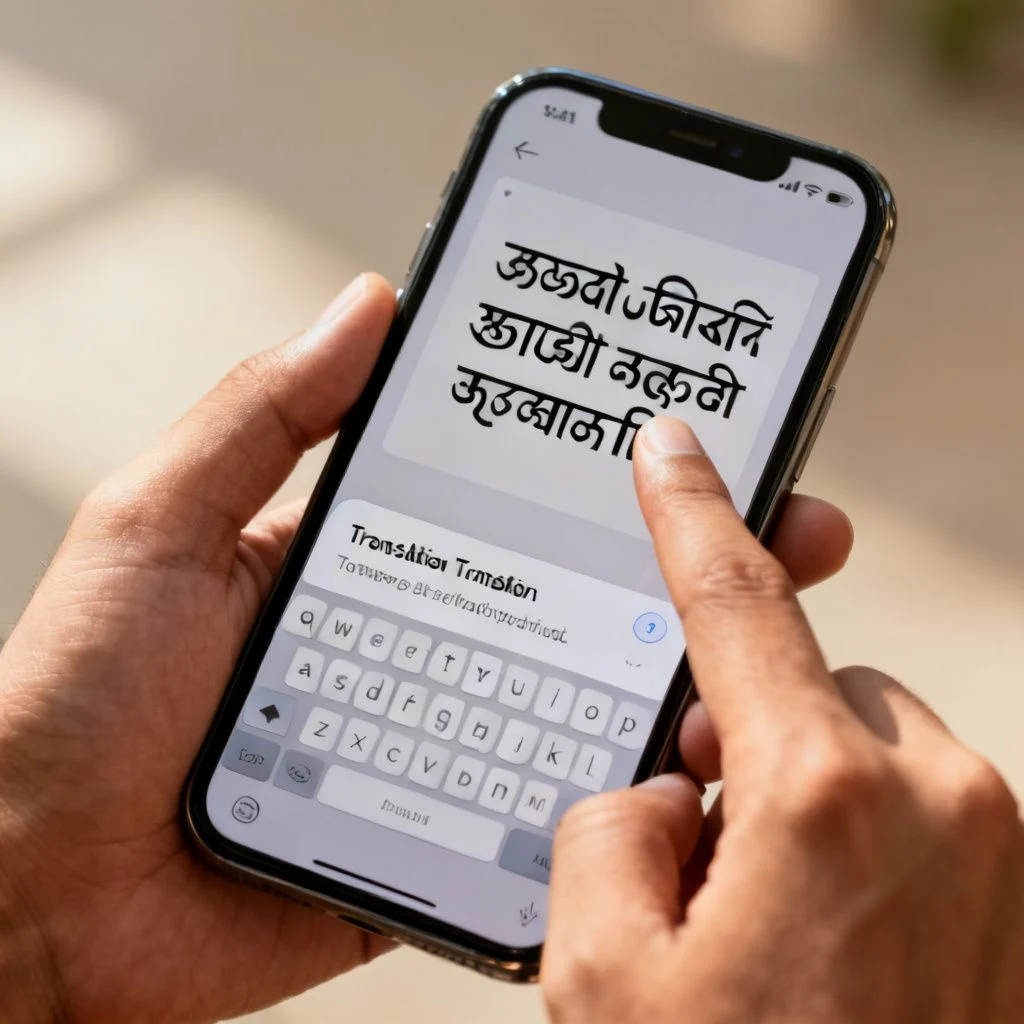
How to Translate Kannada to English Image Using Google Lens
Google Lens is the most reliable free option for translating Kannada from an image, and it handles the complex Kannada script better than most alternatives. It works on both Android and iOS.
Step 1: Open Google Lens
On Android, open the Google app and tap the camera icon in the search bar. On iOS, download the standalone Google Lens app from the App Store, or access it through the Google Photos app. You do not need a Google account to use the basic translation feature.
Step 2: Import Your Image
Tap the gallery icon (it looks like a small landscape photo) in the bottom corner. Select the Kannada image from your camera roll. If you are translating something in front of you right now, you can skip this and point your camera directly at the text using the live viewfinder.
Step 3: Select the Translate Filter
At the bottom of the screen, swipe through the options until you land on Translate. Google Lens will automatically detect Kannada as the source language. If it does not, tap the language name above the shutter button and manually select Kannada as the source and English as the target.
Step 4: View and Copy the Translation
The app overlays the English translation directly onto the original image. Tap any translated text block to select it. You will see options to Copy Text, Listen to the pronunciation, or Search the translated phrase on Google. Tap “Copy Text” to paste the full translation into a note, email, or messaging app.
Pro Tip: For longer documents, use the Text mode first (not Translate) to extract all the raw Kannada text, then paste that into Google Translate for a more fluent, contextual translation. The image overlay mode sometimes truncates longer sentences.
Alternative Tools for Kannada Image Translation
Google Lens handles most situations, but it is not the only game in town. Different tools shine in different scenarios, especially when you need higher accuracy for formal documents or want to translate text embedded in complex layouts.
| Tool | Best For | Accuracy with Kannada | Price |
|---|---|---|---|
| Google Lens | Signs, menus, quick scans | High | Free |
| Microsoft Translator | Multi-page documents, offline use | High | Free |
| Adobe Scan + Google Translate | Archival quality, printed text | Very High | Free |
| OnlineOCR.net | Desktop workflows, no app install | Moderate | Free (limited pages) |
| iTranslate (iOS) | Apple ecosystem integration | Moderate | Freemium |
Microsoft Translator App
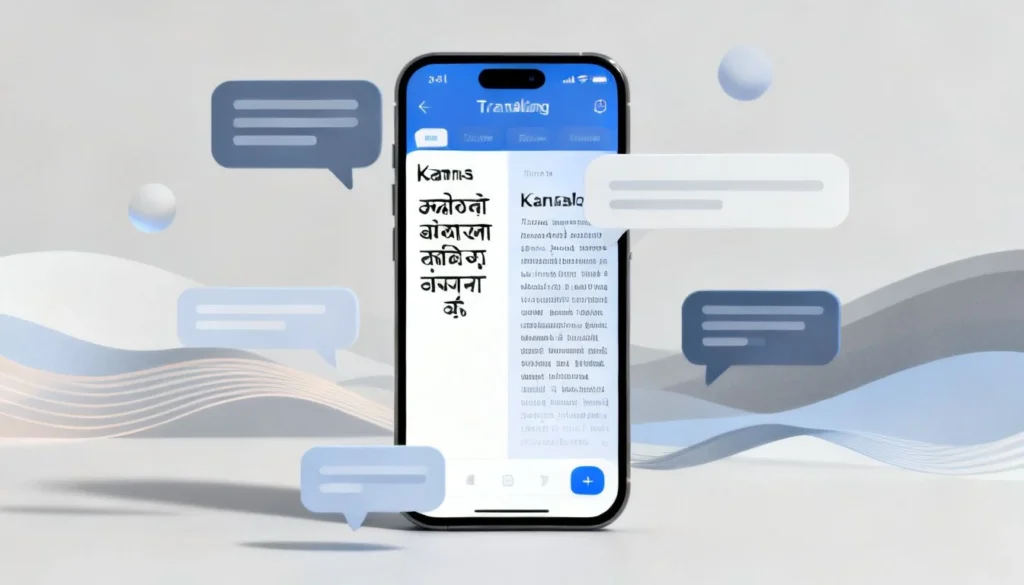
Microsoft’s app offers a dedicated image translation mode that supports Kannada. Download the app, tap the camera icon, and select Kannada > English from the language pair dropdown. Snap a photo or import one from your gallery. The app processes the image and displays the translated text below the original. It also works offline if you download the Kannada language pack ahead of time, which is useful when traveling in Karnataka.
Adobe Scan + Google Translate Workflow
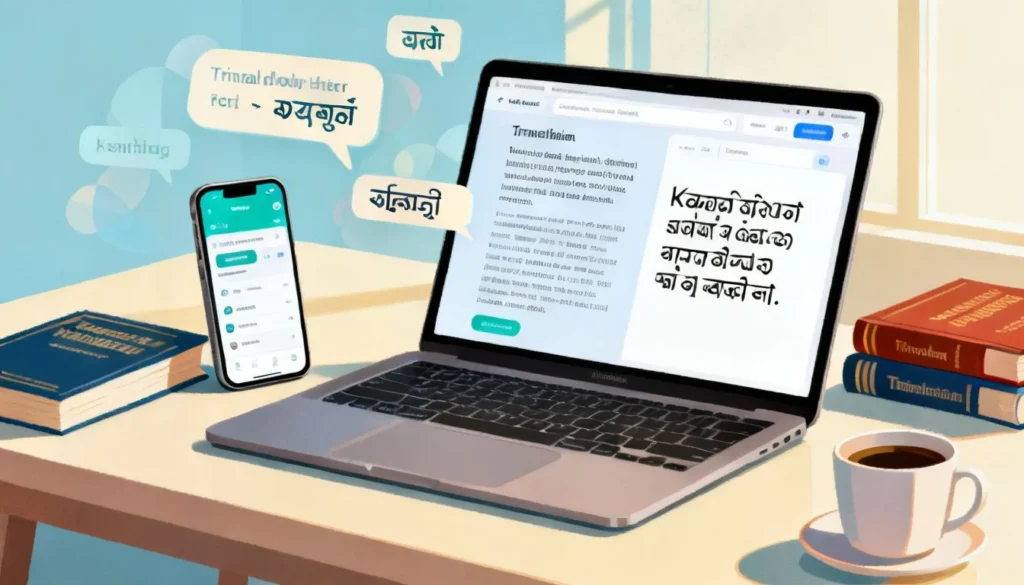
For printed documents where you need near-perfect text extraction, this two-step method produces cleaner results than any single app. Use Adobe Scan to capture the document as a high-contrast PDF. Adobe Scan automatically crops, straightens, and enhances the text. Export the PDF as a text file, then copy and paste that extracted Kannada text into Google Translate for the final English version. This approach separates the OCR step from the translation step, letting each tool do what it does best.
Pro Tip: If you are translating legal or medical documents, never rely solely on machine translation. Use these tools to get the gist, then have a human translator review the output. Kannada has complex compound words that machine translation sometimes splits incorrectly, changing the meaning.
Common Problems and How to Fix Them
Even the best tools stumble. Here is what goes wrong most often and how to recover quickly.
Garbled or nonsensical output: The image quality is the culprit 90 percent of the time. Retake the photo in brighter, more even light. Make sure the text is not skewed. If the problem persists, crop the image tightly around a single paragraph and translate piece by piece.
Tool detects the wrong language: Kannada script is sometimes confused with Telugu by automated detectors. Manually override the source language in your app’s settings instead of relying on auto-detection.
Missing or jumbled words in the middle of sentences: This often happens when the original text uses a decorative or handwritten font. Try the Adobe Scan method described above, which applies heavy contrast adjustments that help the OCR engine distinguish letter shapes from the background.
Translation reads awkwardly: Machine translation from Kannada to English often produces overly literal phrasing. After copying the text, read it aloud and smooth out the grammar. Small manual edits make a big difference in readability.
Key Takeaways
- Google Lens provides the fastest, most accessible way to translate Kannada to English from an image, and it is completely free
- Image quality dictates translation quality; flat, well-lit, high-contrast photos yield dramatically better results
- For long or formal documents, separate the OCR step (Adobe Scan) from the translation step (Google Translate) for higher accuracy
- Always manually set the source language to Kannada if auto-detection fails
- Machine translation is a powerful starting point, but critical documents still benefit from human review
Frequently Asked Questions
Q: Can I translate Kannada to English from an image without installing any app?
A: Yes. Visit translate.google.com on your mobile browser, tap the camera icon, and upload your image. The web version supports image translation without any app installation, though the performance is slightly slower than the native app.
Q: Is Google Lens free to use for Kannada translation?
A: Google Lens is completely free. There are no usage limits, no subscription tiers, and no watermarks on translated text. You can use it as many times as you need.
Q: How accurate is automatic Kannada to English image translation?
A: For clear, printed text in standard fonts, accuracy is generally above 90 percent. Handwritten Kannada, stylized fonts, and text on curved or textured surfaces drop accuracy significantly. Expect to do some light manual correction.
Q: Can I translate a Kannada PDF to English using these methods?
A: Yes. Open the PDF on your phone, take a screenshot of each page, and feed those screenshots into Google Lens or Microsoft Translator. For multi-page documents, the Adobe Scan plus Google Translate workflow described above handles PDFs efficiently.
Q: Does Microsoft Translator work offline for Kannada?
A: Yes. Download the Kannada language pack in the app settings while you have a Wi-Fi connection. After that, image translation works without any internet access, which is helpful when traveling in areas with limited connectivity.
Q: What is the best app for translating Kannada handwriting from an image?
A: Google Lens handles printed handwriting better than cursive. For handwritten Kannada, the accuracy is lower across all tools. Try increasing the image contrast first. If the handwriting is neat and well-spaced, Google Lens still offers the best results among free options.
Q: Can I translate Kannada text from a video or live camera feed?
A: Yes. Google Lens and Microsoft Translator both support real-time translation through your phone’s camera. Simply point the camera at the text and the English translation overlays live on your screen without taking a photo.
Q: Why does my translated text have random symbols or question marks?
A: This usually means the OCR engine could not recognize certain Kannada characters, often due to low resolution or unusual fonts. Retake the image at a higher resolution, ensure the text area is well-lit, and crop tightly around the problematic section before retrying.
References & Further Reading
- Google Lens Help: Translate text in photos
- Microsoft Translator: Image Translation Support
- Adobe Scan: Document Scanning App
—
About This Article: This guide was written based on hands-on testing of each tool with native Kannada text samples, including printed documents, street signage, and handwritten notes. The methods described reflect current app functionality as of early 2025 and prioritize free, widely available tools that do not require technical expertise to operate.