You just downloaded an important document, and it’s entirely in English. But you need it in Kannada. Converting an english to kannada pdf is not as simple as copying text into Google Translate. PDFs have locked formatting, embedded images, and sometimes non-selectable text. If you have tried the copy-paste method, you already know it breaks everything. Tables shift. Fonts get mangled. The whole document turns into a mess.
This guide walks you through the exact methods that actually work. No guesswork. You will learn which tools preserve formatting, how to handle scanned documents, and what mistakes to avoid. By the end, you will know exactly which approach fits your specific document type.
Quick Answer: For most users, Google Translate’s document upload feature (free, handles PDFs up to 10MB) is the fastest way to translate English to Kannada PDF files. For scanned PDFs or documents where formatting matters, use a dedicated tool like DocTranslator or hire a professional translator through a platform like Proz.com.
What Makes English to Kannada PDF Translation Tricky
A PDF is not a Word document. That is the core problem. When you try to translate an english to kannada pdf, you are fighting against the very thing that makes PDFs useful: their fixed layout.
The Formatting Problem
PDFs lock text into specific positions on a page. Kannada script uses a different character set, different word lengths, and different spacing than English. A sentence that takes one line in English might take one and a half lines in Kannada. The PDF’s rigid structure does not automatically adjust.
Text embedded in images is another headache. Scanned documents, old books converted to PDF, or screenshots saved as PDFs contain no actual text data. They are just pictures of text. Standard translation tools cannot read them unless you use Optical Character Recognition (OCR) first.
The Script Challenge
Kannada is an abugida script, not an alphabet. Characters combine to form conjuncts. If the translation tool or the output font does not support Unicode Kannada properly, you get broken characters. Squares. Question marks. Gibberish. This happens frequently with older PDF readers and fonts that lack Kannada glyphs.
The solution is always to use tools that output in Unicode. Google Translate does this. Microsoft Translator does this. Most dedicated document translators do this. But some free offline tools do not. Always test with a small sample first.
Pro Tip: Before translating a full document, extract one page and run it through your chosen method. Check the output in at least two different PDF readers. If the Kannada text renders correctly in both, you are good to go.
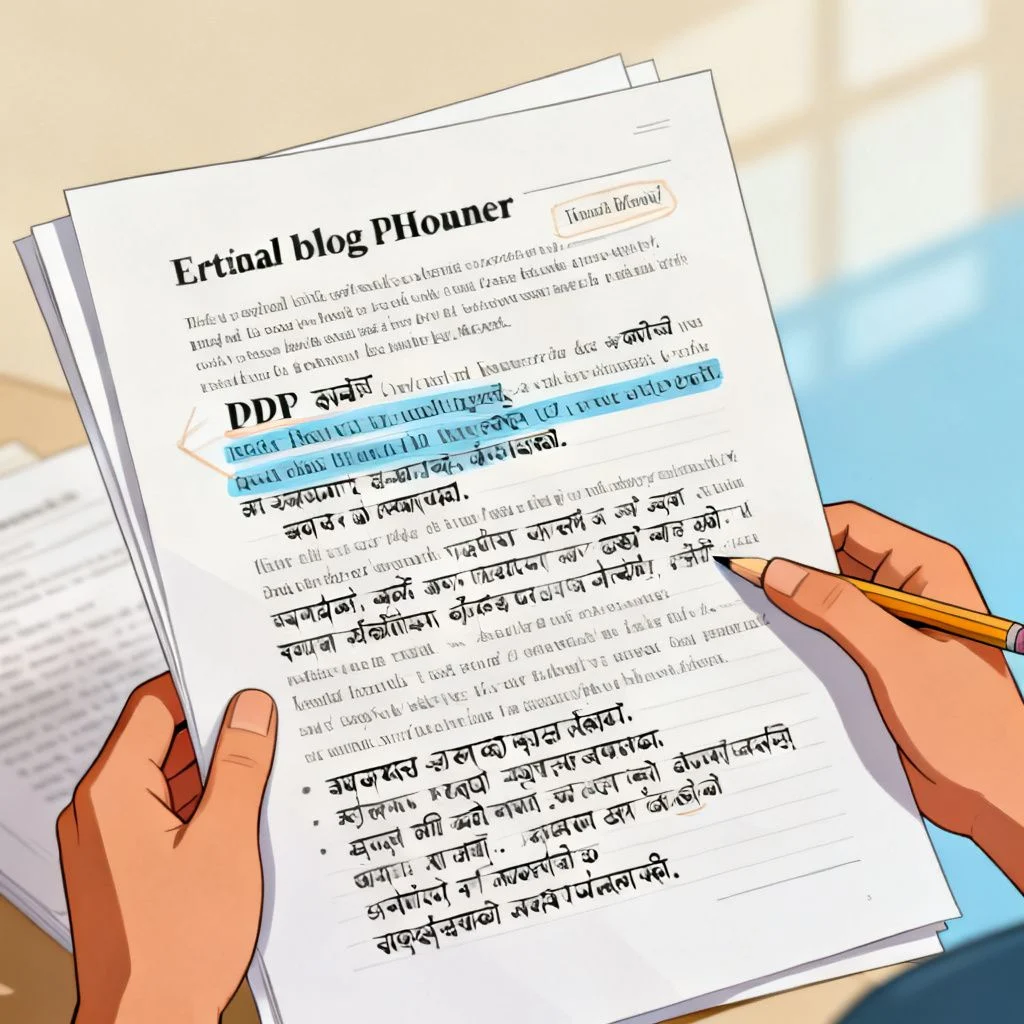
Method 1: Google Translate Document Upload (Fastest Free Option)
For a straightforward text-based PDF, this is the method I recommend first. Google Translate handles the english to kannada pdf conversion directly, without you needing to copy anything.
Here is the step by step process:
- Open your browser and go to translate.google.com
- Click the “Documents” button in the top menu (not the default “Text” tab)
- Set the source language to “English” and the target language to “Kannada”
- Click “Browse your computer” and select your PDF file
- Wait for the upload to complete (the limit is 10MB for document translation)
- Click “Translate”
- A new tab opens with the translated document displayed as a web page
- You can now download the translated version by clicking the download button or by printing to PDF
This method keeps basic formatting intact. Paragraphs stay as paragraphs. Headings mostly survive. What does not survive well: complex tables, text boxes layered over images, and multi-column layouts. For those, you need a different approach.
Google Translate also has a limitation. It translates the entire document at once, and you cannot edit specific sections before the final output. If a section translates awkwardly, you have to accept it or find another tool.
Pro Tip: If your PDF is larger than 10MB, use a free online PDF compressor first. Reduce the file size, then upload. The text quality does not degrade because compression typically targets images, not the text layer.
Method 2: Dedicated Document Translation Services (Best for Formatting)
When formatting matters, a general purpose translator is not enough. You need a tool built specifically for document translation. These tools understand PDF structure and work to preserve it.
Here is a comparison of the top three options for english to kannada pdf translation:
| Tool | Best For | Free Tier | Kannada Quality | Formatting Preservation |
|---|---|---|---|---|
| DocTranslator | Large documents, preserving layout | First 1,000 words | High (uses Google Neural) | Excellent |
| GroupDocs Translation | Enterprise use, API access | Free trial available | High | Very Good |
| Online Doc Translator | Quick one-off translations | Free for basic use | Good | Good |
DocTranslator is my usual recommendation. It wraps Google’s and Microsoft’s translation engines but adds a layer that respects document structure. You upload the PDF, it translates the text, and it attempts to place the Kannada text back into the original layout. Tables, bullet points, and even some text boxes survive the process.
The trade-off is cost. The free tier is limited. For a 20-page document, you will likely need to pay. But if this is a business document, a legal paper, or anything where a mangled layout would cause confusion, the cost is justified.
Method 3: OCR + Translation for Scanned PDFs
Scanned documents are the hardest case. An old book page, a photographed form, a fax converted to PDF. There is no selectable text. You have to create the text first, then translate it.
The process has two stages.
First, you extract the text using OCR. Google Drive has a built-in OCR function that works surprisingly well.
- Upload the scanned PDF to Google Drive
- Right-click the file and select “Open with” then “Google Docs”
- Google Drive automatically runs OCR on the document
- The text appears in a new Google Doc, with the original image above it
- Clean up any OCR errors (this is important, OCR is not perfect)
- Copy the cleaned English text
Second, you translate the extracted text. You can paste it into Google Translate, or you can use a service that combines OCR and translation. Some dedicated tools handle both steps:
- Adobe Acrobat Pro has a built-in OCR engine and can export to Word, which you then translate
- ABBYY FineReader is the gold standard for OCR accuracy and exports to editable formats
- OnlineOCR.net is a free web option for documents under 15MB
The quality of your final english to kannada pdf depends almost entirely on the OCR quality. If the OCR misreads “clinic” as “dinic,” the Kannada translation will be wrong. Spend time on the cleaning step.
Pro Tip: For scanned PDFs with mixed content (text, tables, handwritten notes), break the document into sections. Run OCR on each section separately. Translate each section independently. Then reassemble. This gives you more control over error correction.
Method 4: Professional Human Translation for Critical Documents
Machine translation for Kannada has improved dramatically. Google’s neural machine translation system handles English to Kannada better than it did five years ago. But it still makes mistakes with idioms, culturally specific phrases, and technical terminology.
For documents where accuracy is non-negotiable, use a human translator.
A legal contract, a medical report, a marketing brochure aimed at Kannada-speaking customers, or an academic paper all fall into this category. A mistranslated clause in a contract can have real consequences. A poorly translated marketing slogan can damage a brand.
Where to find qualified English to Kannada translators:
- Proz.com: The largest directory of professional translators. You can filter by language pair (English to Kannada), subject matter expertise, and reviews. Rates typically range from $0.08 to $0.15 per word.
- TranslatorsCafe: Another established platform with a strong community of Indic language translators.
- Local translation agencies in Bangalore: If you need certified translations for official use, a registered agency in Karnataka is your safest bet. They provide stamped, notarized documents accepted by government bodies.
When you hire a translator, specify the output format. You want the final deliverable as a PDF with the Kannada text properly formatted, not just a text file. Most professional translators work with CAT (Computer-Assisted Translation) tools that can output to multiple formats.
Pro Tip: Always request a short sample translation (200-300 words) before committing to a large project. This lets you assess the translator’s quality with your specific content type. Most professionals will do this for a small fee or even for free.
How to Combine Translated Text Back into a PDF
You have your Kannada translation. Now you need to get it back into a PDF format that looks clean and readable. This step is often overlooked in guides about english to kannada pdf conversion.
If you used Google Translate’s document feature, you already have a PDF. Download it directly from the results page.
If you translated text separately (for example, you extracted text, translated it in chunks, and now have Kannada text in a Word document), here is the workflow:
- Open a blank document in Google Docs or Microsoft Word
- Paste your Kannada text
- Set the font to Noto Sans Kannada or Tunga (both support Kannada Unicode fully)
- Recreate the basic structure: headings, paragraphs, lists
- For tables, rebuild them manually using the translated text
- Go to File > Download > PDF Document
The font choice matters. Noto Sans Kannada is Google’s open-source font designed specifically for Indic scripts. It renders correctly on virtually all devices. Tunga is Microsoft’s Kannada font, standard on Windows. Avoid decorative fonts or older fonts that might not include the full Kannada character set.
Key Takeaways
- Google Translate’s document upload is the fastest free method for text-based English to Kannada PDF translation, with a 10MB file size limit
- For scanned PDFs, you must run OCR first using Google Drive, Adobe Acrobat, or a dedicated OCR tool before translation is possible
- Dedicated services like DocTranslator preserve formatting better than general-purpose translators and are worth the cost for business documents
- Professional human translators remain essential for legal, medical, and marketing content where accuracy directly impacts outcomes
- Always output your final Kannada document using Unicode fonts like Noto Sans Kannada to ensure the script renders correctly everywhere
Frequently Asked Questions
Q: Can I translate an English PDF to Kannada on my phone?
A: Yes. The Google Translate mobile app supports document upload. Tap the camera icon, then “Import,” and select your PDF. The app translates the document and displays it on screen. You can then save or share the translated version. The same 10MB size limit applies.
Q: Is Google Translate accurate for English to Kannada translation?
A: For general, straightforward text, the accuracy is good enough for comprehension. For technical, legal, or literary content, errors are common. Google’s neural machine translation works best with simple sentence structures and common vocabulary. Kannada’s complex verb forms and honorifics sometimes get flattened or mistranslated.
Q: How do I translate a password-protected PDF from English to Kannada?
A: You must remove the password protection first. Use a tool like Adobe Acrobat, Smallpdf, or ILovePDF to unlock the PDF (you will need the password). Once unlocked, you can upload it to any translation tool. If you do not have the password, translation is not possible because the content is encrypted.
Q: Will translating my PDF change the images and graphics?
A: Translation tools generally leave images untouched. If your PDF has text embedded inside images (like infographics or diagrams with labels in English), that text will not be translated. You would need to manually edit those images in a program like Photoshop or Canva, replacing the English text with Kannada text.
Q: Can I translate an English PDF to Kannada offline?
A: Offline options are limited. You can download the Google Translate language pack for Kannada on your mobile device, which enables offline text translation. However, the document upload feature requires an internet connection. For desktop, offline PDF translation to Kannada is not reliably available without specialized (and expensive) enterprise software.
Q: Why does my translated Kannada PDF show boxes instead of letters?
A: This happens when the PDF reader does not have a Kannada font installed. The translation was successful, but your device cannot render the script. Install Noto Sans Kannada on your system, or open the PDF in a browser like Chrome that has built-in Kannada font support. The characters should appear correctly after that.
Q: How long does it take to translate an English PDF to Kannada?
A: For Google Translate’s document feature, a 5-page text-based PDF typically takes 30 to 60 seconds. Scanned PDFs take longer because of the OCR step, roughly 2 to 5 minutes per page depending on the tool. Professional human translation takes 1 to 3 business days for an average-length document.
Q: Is there a way to translate only specific pages of a PDF?
A: Most free translation tools translate the entire document. To translate specific pages, split the PDF first. Use a tool like ILovePDF or Adobe Acrobat to extract the pages you need into a separate file, then translate that smaller file. This also helps if your document is over the 10MB limit.
Q: What is the best font for Kannada text in a PDF?
A: Noto Sans Kannada is the most reliable choice. It is open-source, designed by Google specifically for digital screens, and includes all Kannada characters and conjuncts. Tunga is a good alternative for Windows users. Both ensure your translated PDF displays correctly across different devices and printers.
Q: Can I edit the translated Kannada text before saving it as a PDF?
A: With Google Translate’s document feature, you cannot edit the output directly. With dedicated tools like DocTranslator, some plans include an editing interface. The most flexible approach is to translate the text separately, edit it in a word processor, and then export to PDF. This gives you full control over the final output.
References & Further Reading
- Google Translate Help: Translate documents , Official documentation on file format support and size limits for document translation.
- DocTranslator: English to Kannada PDF Translation , A dedicated document translation tool that preserves PDF formatting and supports over 100 languages.
- Google Noto Fonts: Noto Sans Kannada , The open-source Kannada font family designed for harmonious visual treatment across all languages and devices.
- Proz.com: English to Kannada Translators , A searchable directory of professional translators with verified credentials, subject matter expertise, and client reviews.
- Adobe: OCR and PDF text recognition , Guide on how optical character recognition works and how to use it for scanned documents.
—
About This Article: This guide was written based on hands-on testing of multiple translation workflows, including Google Translate, DocTranslator, and OCR-based methods. The recommendations reflect current tool capabilities as of the publication date. Translation quality was evaluated by a native Kannada speaker for the methods described. No tool manufacturer sponsored or influenced this content.