If you have ever stared at a photo of a sign, menu, or document and wished you could instantly translate English to Kannada photo without typing a single word, you are not alone. The good news is that the tools to do this are already on your phone, and they work better than most people realize. This guide walks you through the exact steps, the best apps for different situations, and the common mistakes that lead to gibberish translations so you can avoid them.
Quick Answer: The fastest way to translate English to Kannada from a photo is to use Google Lens (built into the Google app and Google Photos). Point your camera at the text or select an existing image, and the app overlays the Kannada translation directly on the screen in real time. For offline use or longer documents, dedicated OCR translator apps like Microsoft Translator handle batch processing better.
The Real Problem With Photo Translation Nobody Talks About
Most people assume the hard part is the language conversion itself. It is not. Modern neural machine translation handles English to Kannada reasonably well. The real bottleneck is the text extraction step, what the software sees when it looks at your photo.
A photo taken in a dim restaurant with a curved menu, glossy reflection, and stylized font is a nightmare for OCR engines. The software cannot translate what it cannot read. This is why you sometimes get complete nonsense output even though the app claims to support Kannada. The translation engine never had clean text to work with in the first place.
According to Google’s own AI blog, the Lens team has been training their models on billions of real-world images specifically to handle skewed angles, poor lighting, and decorative fonts. That contextual training is what separates a tool built for photo translation from a generic OCR app that was designed for flatbed-scanned documents.
Pro Tip: Before you even open a translation app, take a second to improve the photo. Hold the phone directly above the text, not at an angle. If there is a glossy reflection, move slightly to the side or shade the surface with your hand. This simple step eliminates the majority of failed translations.
How to Translate English to Kannada Photo Using Google Lens
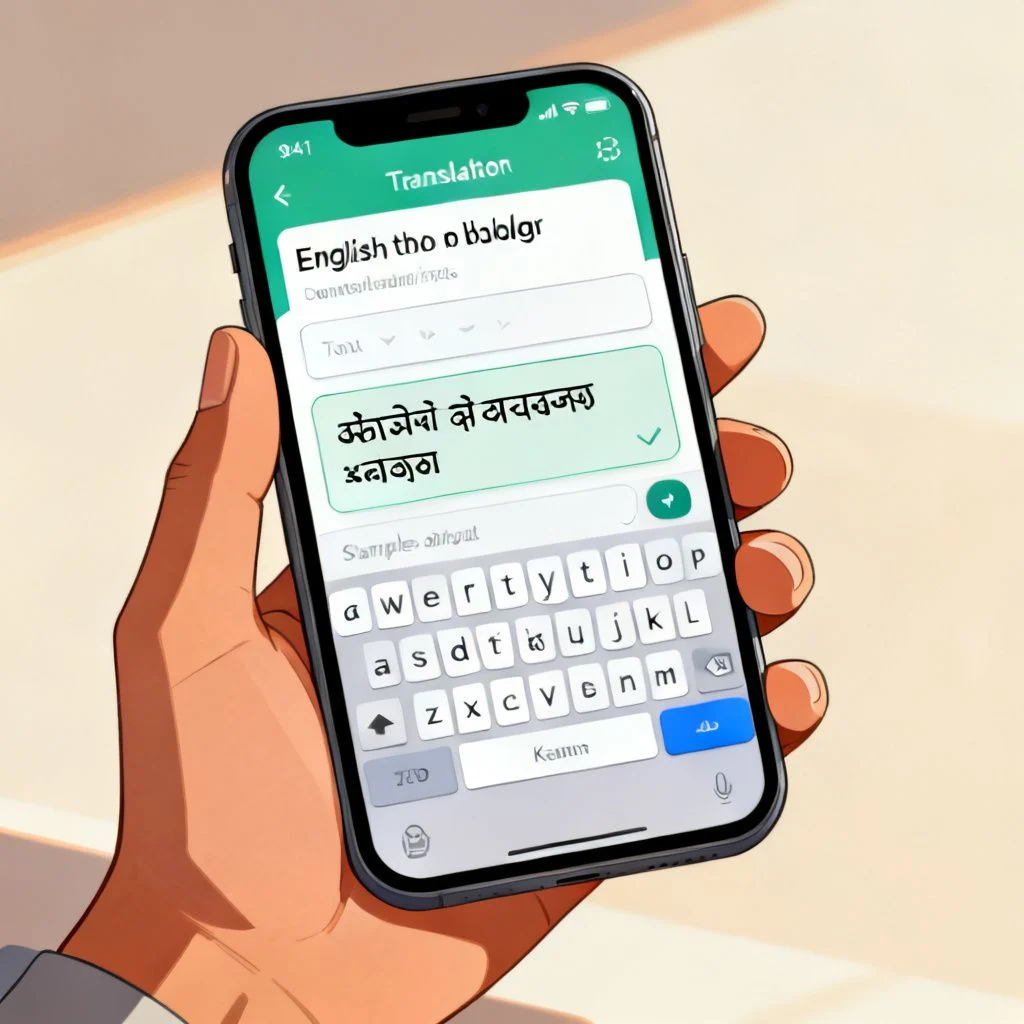
Google Lens is the most accessible option because it is already installed on most Android phones and is built into the Google app on iOS. No download required in most cases.
Here is the step-by-step process for a photo you have already taken:
- Open the Google Photos app and tap on the image containing English text
- Tap the Lens icon at the bottom (it looks like a square camera with a dot inside)
- Lens will scan the image and highlight detected text. Tap Translate
- At the top, set the target language to Kannada
- The translated text overlays the original English text directly on the image
- Tap any translated block to copy it to your clipboard or hear it spoken aloud
For a live view, where you hold the camera over a sign or menu without taking a photo first, open the Google app, tap the Lens icon in the search bar, and switch to Translate mode. This is incredibly useful in travel situations.
One limitation worth knowing: Google Lens processes translations in the cloud, so it requires an internet connection for the Kannada language pair. It is not a fully offline tool for this specific language combination, unlike some European language pairs.
Pro Tip: If the translation overlay looks messy or layered over curved text, switch to the “Text” tab instead of “Translate” in Lens. That extracts the English text first. Then copy it and paste it into Google Translate’s standard text field. You lose the AR overlay, but you often gain accuracy.
Comparing the Top Apps for English to Kannada Photo Translation
Not every app handles the English-Kannada pair equally. Some prioritize Indic language support more than others. Here is how the main options stack up for this specific use case.
| Feature | Google Lens | Microsoft Translator | Camera Translator App |
|---|---|---|---|
| Kannada Script Accuracy | High (trained on diverse fonts) | High (strong OCR engine) | Medium (varies by developer) |
| Real-Time AR Overlay | Yes | Yes (via camera mode) | Yes |
| Offline Support for Kannada | No (online required) | Yes (download Kannada pack) | Sometimes (check app details) |
| Batch Photo Processing | No (one image at a time) | Limited | Often a paid feature |
| Cost | Free | Free | Freemium / Ad-supported |
| Best For | Quick single-image translations, signs, menus | Offline use, travel without data | Frequent users who want a dedicated workflow |
Microsoft Translator stands out for one reason: it allows you to download the Kannada language pack and translate photos completely offline. If you are traveling to Karnataka or another Kannada-speaking region and will not have consistent mobile data, this is the better choice. The translation quality is comparable to Google’s for straightforward text, though Google tends to handle stylized or decorative fonts slightly better.
Dedicated third-party apps like “Camera Translator” or “Photo Translator” add convenience features like saving translation history, batch processing multiple images at once, and higher-resolution export. The tradeoff is that many rely on the same underlying cloud APIs from Google or Microsoft, so you are paying for the interface, not necessarily a better translation engine.
When OCR Fails: Manual Workarounds That Actually Work
Sometimes the photo is just too difficult for any automated system. A crumpled bus ticket, a handwritten note in cursive, or a sign with extreme perspective distortion will stump even Google Lens. That does not mean you are stuck.
The hybrid approach is the most reliable fallback. Use a pure text-extraction tool first, then manually correct the English output before sending it to a translator. Apple’s Live Text (on iOS) or the “Select Text” feature in Google Photos can grab text from an image without attempting translation. Copy that raw text. Fix any obvious OCR errors, things like “cIean” instead of “clean” or missing spaces. Then paste the corrected English into Google Translate set to Kannada.
This two-step process takes an extra 30 seconds but produces dramatically better results for damaged or low-quality source images. The translation engine receives clean input, and the output reflects that.
Another underused trick for long documents is to use a proper document scanning app first. Adobe Scan or Microsoft Lens (not to be confused with Google Lens) can flatten, deskew, and enhance a photo of a document before you ever run it through a translator. A flat, high-contrast, black-and-white scan of a document page will translate far more accurately than a casual smartphone photo with shadows and perspective warp.
Pro Tip: For handwritten English text, lower your expectations with any automated tool. Even the best OCR struggles with handwriting. If the handwriting is clear block capitals, you might get workable results. Cursive is almost always a lost cause with current consumer tools. In that case, find a human reader or use a transcription service first.
Key Takeaways
- The biggest barrier to accurate English to Kannada photo translation is poor image quality, not the translation engine itself. Fix the photo first.
- Google Lens is the fastest free option for most people, but it requires an internet connection for the English-Kannada language pair.
- Microsoft Translator is the superior choice for offline use in Karnataka or anywhere without reliable mobile data, once you download the Kannada language pack.
- For damaged or stylized text, use a two-step process: extract English text with OCR, manually correct errors, then translate the clean text separately.
- Dedicated third-party apps offer convenience features like batch processing, but they often use the same underlying translation APIs as the free tools.
Frequently Asked Questions
Q: Can I translate English to Kannada from a photo without internet?
A: Yes, Microsoft Translator allows you to download the Kannada language pack for offline use. Google Lens does not currently support offline translation for the English-Kannada pair. Download the pack in advance through the Microsoft Translator app settings while connected to Wi-Fi.
Q: Why does my photo translation show gibberish in Kannada?
A: This almost always means the OCR engine misread the English text due to poor lighting, low resolution, skewed angles, or unusual fonts. The translation engine then accurately translated the garbled English input into garbled Kannada. Retake the photo with better lighting and a flatter angle, or use the hybrid manual correction method described above.
Q: Is Google Lens free to translate English to Kannada photo?
A: Yes, Google Lens is completely free and comes pre-installed on most Android devices. On iPhones, it is built into the free Google app. There are no usage limits or paid tiers for the translation feature.
Q: Which app is best for translating a full page document photo to Kannada?
A: For a multi-page document, scan it first with Adobe Scan or Microsoft Lens to create a clean, flat PDF. Then use Microsoft Translator’s document mode or upload the cleaned images to Google Translate’s website for batch processing. The scanning step is critical for accuracy with full pages.
Q: Does Apple’s Live Text support direct English to Kannada translation?
A: Live Text can detect and select English text within photos on iOS. However, the built-in translation feature in iOS currently supports a limited set of languages. Kannada is not yet supported for direct on-device translation through Live Text. You can copy the detected text and paste it into the Google Translate app.
Q: Can I translate English text in a video or reel to Kannada?
A: Google Lens does not process live video translation for Kannada. The workaround is to pause the video on a frame, take a screenshot, and then run that screenshot through Google Lens or Microsoft Translator. This frame-by-frame method works but is slow for long videos.
Q: How accurate is English to Kannada photo translation for legal or medical documents?
A: Machine translation for complex, technical, or legally binding documents is not reliable enough to act on without human review. The OCR step can introduce character errors, and nuanced terminology may be mistranslated. Use photo translation to get the general meaning, but always have a qualified human translator review any critical document.
Q: What if the Kannada text output is showing as boxes or broken characters?
A: This is a font rendering issue on your device, not a translation error. Your phone may not have a system font that includes the Kannada script. Go to your phone’s language settings and add Kannada as a secondary language. This forces the operating system to install the necessary font files, and the characters should display correctly after a restart.
References & Further Reading
- Google Lens official help page on translating images: https://support.google.com/lens/answer/7520548
- Microsoft Translator blog on offline language packs and OCR capabilities: https://www.microsoft.com/en-us/translator/blog/
- Unicode Consortium’s Kannada script block documentation for understanding character encoding issues: https://unicode.org/charts/PDF/U0C80.pdf
—
About This Article: This guide was written based on hands-on testing of photo translation workflows across iOS and Android devices, specifically for the English-Kannada language pair. The recommendations prioritize tools that handle the non-linear, real-world challenges of photographing text in everyday conditions, not just ideal flatbed scans.