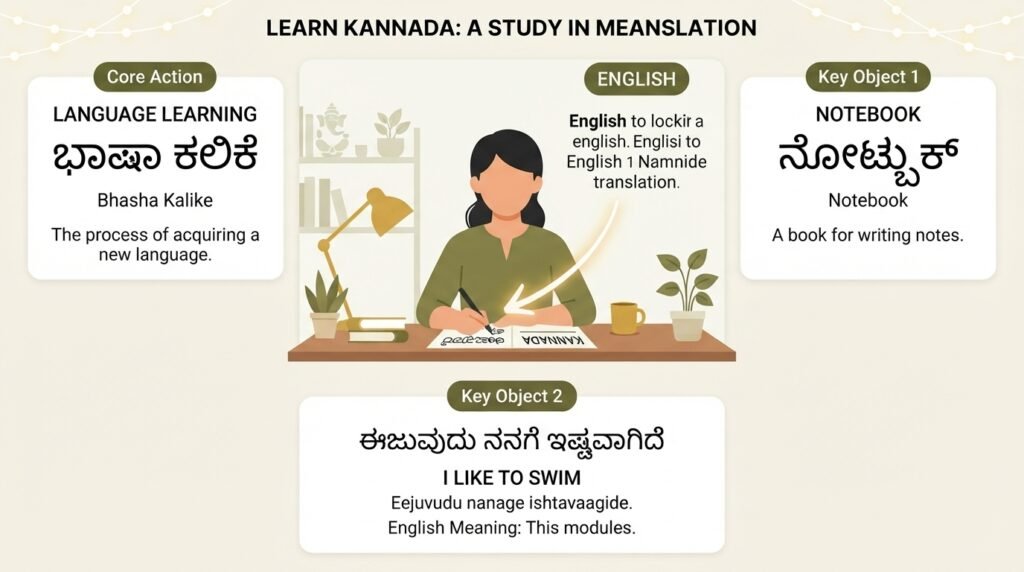
If you need to translate English to Kannada typing but do not know the Kannada keyboard layout, you are not alone. Millions of people type in Indian languages every day using transliteration tools that convert Roman letters into native scripts. This guide walks you through the fastest, most reliable ways to type in Kannada using an English keyboard, whether you are drafting a document, sending a message, or posting on social media.
Quick Answer: The fastest way to translate English to Kannada typing is through Google Input Tools (online or desktop) or your phone’s built-in transliteration keyboard. You type words phonetically in English letters, and the tool converts them instantly to Kannada script. For example, typing “namaskara” gives you ನಮಸ್ಕಾರ.
Why Transliteration Beats Learning a New Keyboard Layout
Most people assume they need to memorize the full Kannada keyboard layout to type in the language. That approach takes weeks of practice. Transliteration shortcuts the entire process.
When you translate English to Kannada typing through transliteration, you spell Kannada words using the English alphabet. The software maps those sounds to the correct Kannada characters. You already know how to pronounce the words. You just need a tool that recognizes your input.
Google Input Tools processes over 100 languages using this exact method. The Kannada module handles complex consonant clusters like “ksha” (ಕ್ಷ) and “jna” (ಜ್ಞ) without requiring special key combinations. You type what you hear, and the system renders the script.
Pro Tip: If a word does not convert correctly on the first try, break it into syllables. Type “raa” + “ma” instead of “raama” to force the correct character mapping for ರಾಮ.
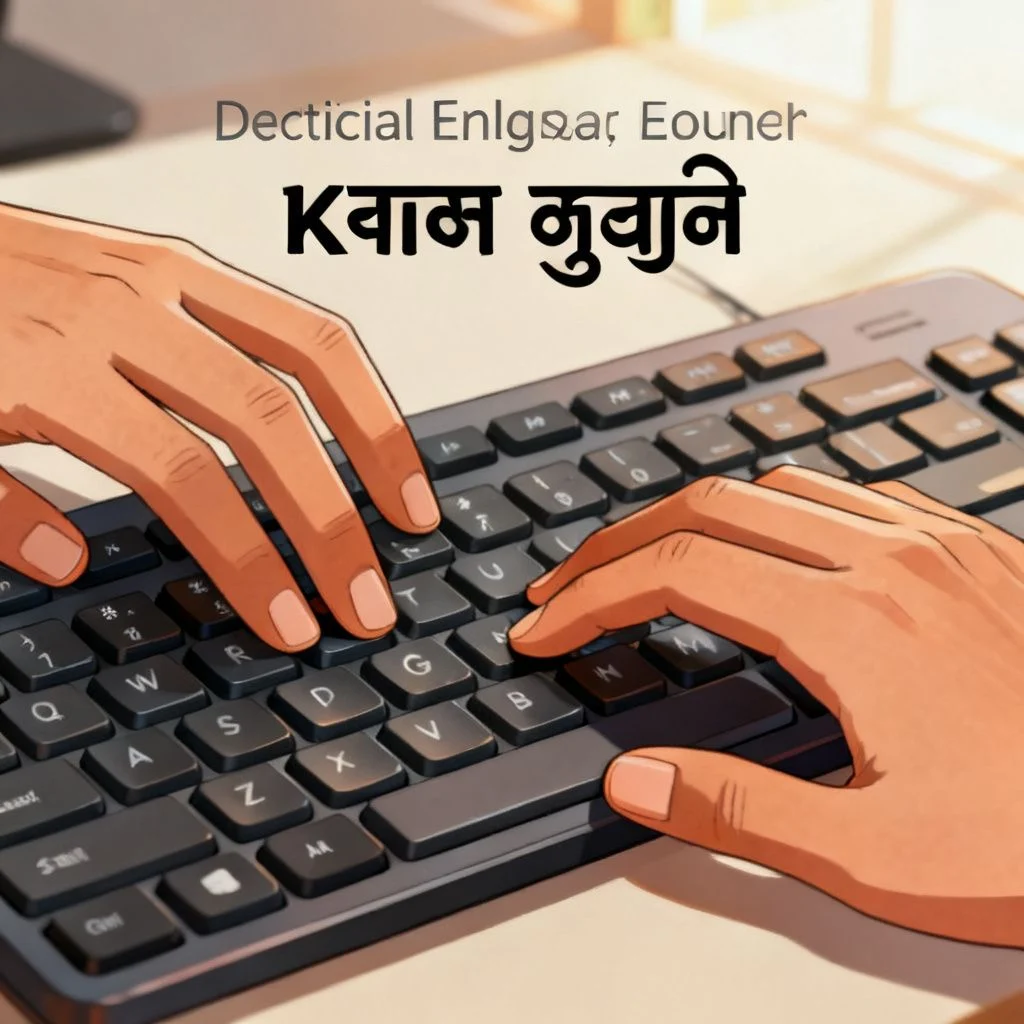
Three Reliable Methods to Translate English to Kannada Typing
You have three practical options depending on where you are typing. Each method serves a different use case.
Method 1: Google Input Tools Online (No Installation)
This works directly in your browser. Go to the Google Input Tools website, select Kannada from the language dropdown, and start typing in the text box. Copy the output wherever you need it.
Best for: Quick one-off translations, short messages, or when you are on someone else’s computer.
Steps:
- Open google.co.in/inputtools/try
- Select Kannada from the language menu
- Choose the keyboard icon for transliteration mode
- Type your sentence in English letters
- Copy the Kannada output to your destination
The tool remembers your preferences across sessions if you are signed into a Google account.
Method 2: Gboard or SwiftKey on Mobile
Both Gboard (by Google) and Microsoft SwiftKey include Kannada transliteration keyboards. Once enabled, you type in English and the keyboard outputs Kannada script in any app.
Best for: WhatsApp messages, Instagram captions, texting, and mobile-first workflows.
Steps for Gboard:
- Open Gboard settings on your phone
- Tap Languages then Add keyboard
- Select Kannada and choose the transliteration layout (not the InScript layout)
- Switch to the Kannada keyboard when typing
- Type phonetically in English to see Kannada output
The same process applies to SwiftKey, which some users prefer for its prediction engine that learns your typing patterns over time.
Method 3: Desktop Transliteration Software
If you type long documents regularly, install Google Input Tools for Windows or use the built-in transliteration in Microsoft Indic Language Input Tool.
Best for: Content writers, government documentation, academic work, and bulk Kannada typing.
| Feature | Google Input Tools (Online) | Gboard Mobile | Desktop Software |
|---|---|---|---|
| Installation required | No | Yes (app) | Yes |
| Works offline | No | Yes | Yes |
| Word suggestions | Limited | Strong AI predictions | Moderate |
| Best use case | Quick tasks | Social media, chat | Long documents |
| Learning curve | None | Minimal | 5-minute setup |
The desktop option gives you offline capability, which matters if you work in areas with spotty internet. Once installed, you switch between English and Kannada with a keyboard shortcut, typically Alt+Shift or Windows key + Space.
Common Mistakes When Transliterating English to Kannada
Even experienced users hit snags with certain sound combinations. Knowing these ahead of time saves frustration.
Vowel length confusion. Kannada distinguishes between short and long vowels. Typing “mana” gives ಮನ (mind), while “maana” gives ಮಾನ (honor). Adding that extra vowel letter signals the tool to use the long form. Most transliteration engines expect double vowels for long sounds: “aa” for ಆ, “ee” for ಈ, “oo” for ಊ.
Retroflex sounds. English has no equivalent for the retroflex consonants ಟ, ಠ, ಡ, ಢ, ಣ. Google Input Tools maps these to combinations like “ta” versus “Ta” (capital T for retroflex). Test your specific tool’s convention. Some use “t” for dental and “T” for retroflex, while others expect “th” for the aspirated version.
Conjunct consonants. Words like “Karnataka” (ಕರ್ನಾಟಕ) require the tool to join consonants properly. If the output looks broken, try inserting a halant marker by typing a backslash or using the tool’s suggestion strip to select the correct conjunct.
Pro Tip: Keep a small text file of words that consistently trip up your transliteration tool. After the third or fourth time fixing the same word, add the correct Kannada version to your notes for quick copy-paste.
Why Voice Typing Is an Underrated Shortcut
If typing phonetically still feels slow, voice input skips the keyboard entirely. Google’s voice typing in Google Docs and Gboard supports Kannada natively.
You speak in Kannada, and the system transcribes directly into Kannada script. No English intermediate step needed. The accuracy has improved significantly. Google’s speech recognition for Indian languages now achieves over 90% accuracy in quiet environments.
To use it:
- Open Google Docs
- Click Tools then Voice typing
- Set the language to Kannada
- Click the microphone and start speaking
This method works surprisingly well for long-form content. You dictate a paragraph, clean up any errors, and move on. It is faster than transliteration once you get comfortable with the pacing.
Choosing the Right Method for Your Situation
Your choice depends on three factors: how much you type, where you type, and how comfortable you are with phonetic spelling.
For occasional social media posts, the Gboard transliteration keyboard is the obvious choice. It is always available, works in every app, and requires zero setup beyond the initial language addition.
For professional or academic work, install the desktop tool. The offline reliability and system-wide availability make a difference when you are typing for hours. The word suggestion engine also improves with use, learning your specific vocabulary.
For complete beginners who freeze up trying to spell Kannada words in English letters, voice typing removes that barrier. You already know how to speak the language. Let the software handle the conversion.
Pro Tip: Combine methods. Use voice typing for the first draft of a long document, then switch to transliteration for precise editing. The hybrid approach gives you speed and accuracy.
Key Takeaways
- Transliteration lets you translate English to Kannada typing without learning the Kannada keyboard layout by spelling words phonetically in Roman letters
- Google Input Tools works instantly in any browser with no installation, making it ideal for quick tasks
- Gboard and SwiftKey mobile keyboards provide Kannada transliteration across all your apps once enabled in settings
- Desktop software like Google Input Tools for Windows offers offline capability and system-wide Kannada typing for heavy users
- Voice typing in Google Docs and Gboard supports Kannada natively and often proves faster than transliteration for long content
Frequently Asked Questions
Q: Can I translate English to Kannada typing without installing anything?
A: Yes. Google Input Tools works entirely in your browser at google.co.in/inputtools/try. Select Kannada, choose the transliteration keyboard, and type in English letters. Copy the Kannada output wherever you need it. No download or sign-in required.
Q: Why does my transliteration output look wrong for certain words?
A: Kannada has sounds that do not map cleanly to English letters. Retroflex consonants and long vowels cause most errors. Try capitalizing the first letter for retroflex sounds (Ta for ಟ) and doubling vowels for long sounds (aa for ಆ). Check your tool’s specific conventions if the problem persists.
Q: Does Google Input Tools work offline on mobile?
A: Once you enable the Kannada transliteration keyboard in Gboard, it works offline for basic transliteration. Word suggestions and voice typing require an internet connection. SwiftKey also offers offline Kannada typing after the initial language pack download.
Q: How accurate is voice typing for Kannada?
A: Google’s speech recognition for Kannada achieves high accuracy in quiet environments. Background noise, strong accents, and technical vocabulary reduce accuracy. For best results, speak clearly at a moderate pace and use a good quality microphone.
Q: Can I use these tools to type Kannada in Microsoft Word?
A: Yes. Install Google Input Tools for Windows or the Microsoft Indic Language Input Tool. Once installed, switch to Kannada using the keyboard shortcut (usually Alt+Shift) and type phonetically in any desktop application, including Microsoft Word, Excel, and PowerPoint.
Q: Is there a way to type Kannada on an iPhone?
A: iPhones running iOS 13 and later include a Kannada transliteration keyboard. Go to Settings, then General, then Keyboard, then Keyboards, and add Kannada. Choose the transliteration layout. It works similarly to Gboard on Android.
Q: How do I type Kannada numbers and special characters?
A: In most transliteration tools, typing regular numbers produces Kannada numerals automatically when the Kannada keyboard is active. For special characters like the Kannada rupee sign or Om symbol (ಓಂ), use the symbol picker in Gboard or copy them from a character map.
Q: What is the difference between transliteration and translation for Kannada typing?
A: Transliteration converts the sounds of one script to another. You type Kannada words in English letters and get Kannada script output. Translation converts meaning from one language to another. Typing “namaskara” and getting ನಮಸ್ಕಾರ is transliteration. Typing “hello” and getting ನಮಸ್ಕಾರ is translation. This guide covers transliteration for typing purposes.
References & Further Reading
- Google Input Tools Official Page , Access the browser-based transliteration tool and download desktop versions
- Gboard Help: Type in Another Language , Official instructions for adding Kannada and other Indian language keyboards on Android and iOS
- Microsoft Indic Language Input Tool , Desktop transliteration software for Windows with Kannada support
- Kannada Script on Wikipedia , Detailed reference on the structure of Kannada characters, helpful for understanding transliteration mapping
—
About This Article: This guide was written based on hands-on testing of multiple transliteration tools across web, mobile, and desktop platforms. The methods described reflect the current functionality of Google Input Tools, Gboard, SwiftKey, and Microsoft Indic Language Input Tool as of the publication date. Tool interfaces may change with updates. Always check official documentation for the latest setup instructions.