Need to translate a PDF file from Kannada to English and not sure where to start? You are not alone. Kannada, with its complex script and rich literary tradition, presents unique challenges for automated translation tools. But the process has gotten much simpler in recent years. This guide walks you through the exact methods that work, from quick free options to more precise paid tools, so you can pick the right approach for your document.
Quick Answer: The fastest way to translate a Kannada PDF to English is to upload the file to Google Translate (for text-based PDFs) or extract the text using Google Lens or an OCR tool first (for scanned image PDFs), then translate the extracted text.
Understanding Your PDF Type Before You Start
Before you click any translate button, you need to know what kind of PDF you are dealing with. This single step will save you a lot of frustration.
There are two main types of PDF files:
- Text-based PDFs: These were created directly from a word processor or text editor. You can highlight and copy the text inside them. Translation tools can read these directly.
- Scanned or image-based PDFs: These are essentially photographs of a document. The text is just pixels in an image. You cannot highlight or copy it. These require an extra step.
The method you choose depends entirely on this distinction. Sending a scanned PDF straight to a translator that expects text will either produce an error or garbled output.
Pro Tip: Open your PDF and try to highlight a sentence with your mouse. If you can select the text, it is text-based. If your cursor turns into a crosshair or selects an area like a photo, you have a scanned image PDF.
How to Translate Text-Based Kannada PDFs
If your PDF is text-based, you are in luck. This is the simpler path.
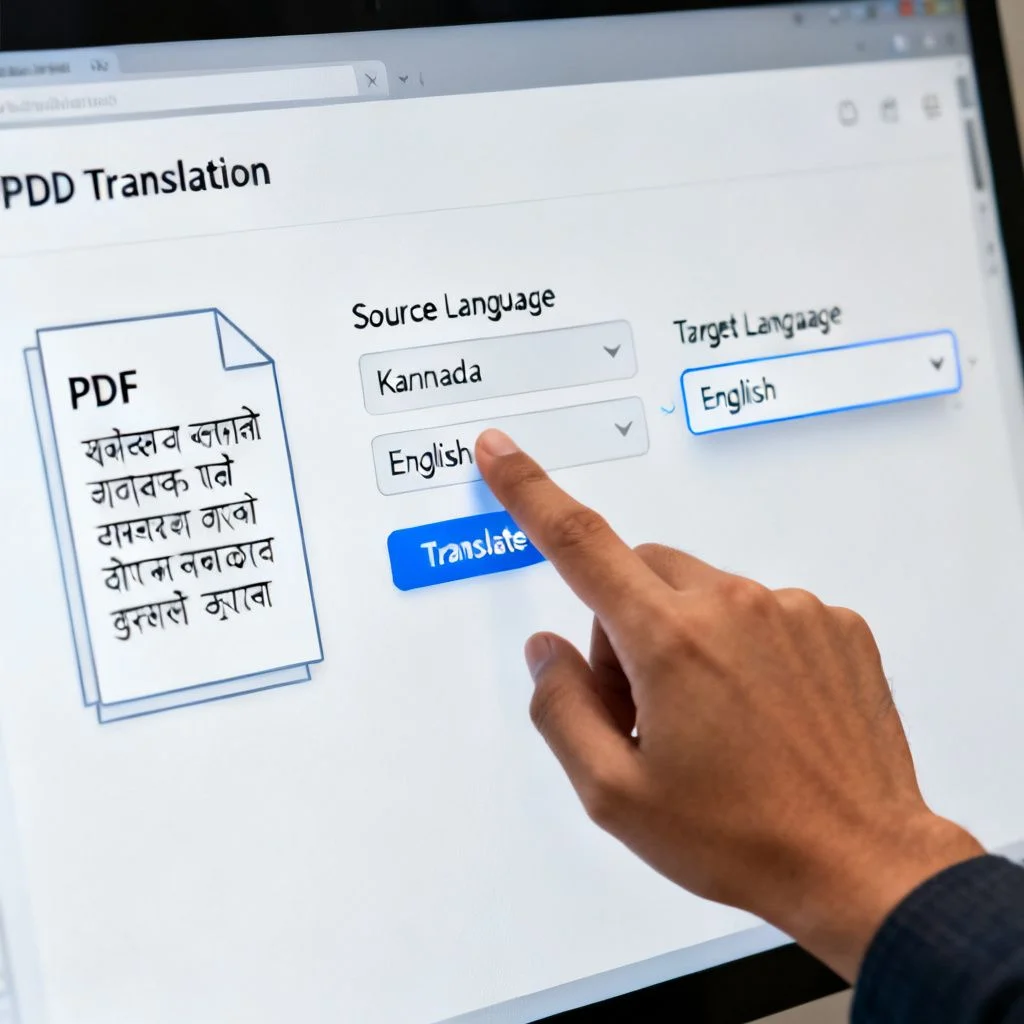
Step 1: Use Google Translate for Direct Document Translation
Google Translate handles entire documents now, not just snippets of text. It supports Kannada and produces surprisingly usable English translations for most general content.
- Go to translate.google.com in your browser.
- Click the Documents tab near the top of the page.
- Set the source language to Kannada (Google will often auto-detect it, but setting it manually is more reliable). Set the target language to English.
- Click Browse your computer and select your PDF file.
- Click the Translate button.
- Wait for the translation to process. You will see the translated text appear on screen.
- Click Download translation to save the result as a clean HTML or Word document.
The translated document will not be a pixel-perfect copy of your original PDF layout. Google Translate strips the formatting and delivers the translated text in a simple, clean structure. That is the tradeoff for speed and zero cost.
Step 2: Try DeepL for More Nuanced Translation
DeepL is widely considered the most accurate machine translation engine for many language pairs. While it does not have a dedicated document upload feature for Kannada on its free plan, you can still use it effectively.
- Open your text-based PDF in any PDF reader.
- Select all the text (Ctrl+A or Cmd+A) and copy it (Ctrl+C or Cmd+C).
- Go to deepl.com.
- Paste the copied text into the left-hand input box.
- Set the source language to Kannada and target to English.
- DeepL will translate the text in the right-hand panel.
- Copy the English output and paste it into a Word document or Google Doc.
This method gives you a more natural-sounding English translation, especially for formal or technical documents. The downside is the manual copy-paste step and the loss of all formatting.
| Tool | Best For | Formatting Kept? | Cost | Accuracy |
|---|---|---|---|---|
| Google Translate | Quick, full-document translation | No, plain text output | Free | Good for general text |
| DeepL | Nuanced, natural-sounding prose | No, requires manual paste | Free tier available | Excellent, often more fluid |
| Google Lens | Scanned PDFs and image-based text | No, extracts text only | Free | Good, depends on image clarity |
| Adobe Acrobat Pro | High-volume, professional scanned docs | Yes, editable PDF output | Paid subscription | Best for scanned documents |
How to Translate Scanned or Image-Based Kannada PDFs
Scanned PDFs need an extra step called OCR, or Optical Character Recognition. This technology reads the image, identifies the Kannada characters, and converts them into actual text that a translator can process.
Step 3: Extract Text with Google Lens
Google Lens is a free and remarkably capable OCR tool that handles Kannada script well.
- Open the scanned PDF on your computer screen. Zoom in so the text is large and clear.
- Open the Google Lens app on your phone (available for Android and iOS).
- Point your phone camera at the text on your computer screen.
- Tap the Text icon in Lens.
- Lens will highlight the text it detects. Tap Select all.
- Tap Copy text. The Kannada text is now on your phone’s clipboard.
- Paste the text into Google Translate, DeepL, or any translation app.
This method works perfectly for a page or two. For longer documents, it becomes tedious. The quality depends heavily on the clarity of the original scan and the font used.
Pro Tip: For a 20-page scanned document, do not use your phone camera. Instead, use a desktop OCR tool like Google Drive. Upload the scanned PDF to your Drive, right-click it, and choose Open with > Google Docs. Google Drive will automatically perform OCR on the file, converting the image into a text document that you can then feed into Google Translate.
Step 4: Use a Dedicated Desktop OCR Tool for Professional Results
If you are translating legal, medical, or academic documents where accuracy is critical, a dedicated OCR program is worth the investment.
Adobe Acrobat Pro is the industry standard. Here is the workflow:
- Open your scanned PDF in Adobe Acrobat Pro.
- Click the Scan & OCR tool in the right-hand pane.
- Select Recognize Text > In This File.
- In the settings, make sure the document language is set to Kannada.
- Click Recognize Text. Acrobat will process the entire document.
- Once complete, you have a searchable PDF. You can now export it directly: go to File > Export To > Microsoft Word.
- The resulting Word document will contain the extracted Kannada text. You can then copy and paste this into your chosen translation tool.
This two-step process (OCR then translate) preserves more of the original formatting than any direct translation method and gives you the most reliable text extraction for complex Kannada scripts.
Key Takeaways
- Identify your PDF type first: Check if text is selectable to know if you need OCR.
- Google Translate handles full documents for free but strips all formatting.
- DeepL provides more natural English but requires a manual copy-paste workflow.
- Google Lens is your best free OCR tool for quick extraction from scanned pages.
- For long or critical scanned documents, use Google Drive’s built-in OCR or Adobe Acrobat Pro before translating.
Frequently Asked Questions
Q: Can I translate a PDF from Kannada to English without losing the formatting?
A: Maintaining exact formatting during translation is very difficult. Most free tools, including Google Translate, output plain text. Paid tools like Adobe Acrobat Pro can export a translated document as a formatted Word file, but you will likely still need to make manual adjustments to fonts and layout.
Q: Is Google Translate accurate for Kannada to English translation?
A: Google Translate’s accuracy for Kannada has improved significantly with neural machine translation. It handles common phrases and straightforward sentences well. However, it can struggle with idiomatic expressions, complex literary language, or specialized technical vocabulary. Always proofread the output.
Q: How do I translate a handwritten Kannada PDF to English?
A: Handwritten text is much harder for OCR to recognize than printed text. You can try scanning the document at a high resolution (300 DPI or higher) and running it through Google Drive’s OCR. If that fails, you may need to manually transcribe the Kannada text first before feeding it into a translator.
Q: What is the best free OCR tool for Kannada scripts?
A: Google Drive offers excellent free OCR for printed Kannada. Upload your scanned image or PDF, right-click, and open it with Google Docs. For quick mobile use, Google Lens is remarkably accurate and supports Kannada natively.
Q: Can I translate a secured or password-protected PDF?
A: No. Translation tools and OCR software cannot access a file that is encrypted or password-locked. You must unlock the PDF or remove the security restrictions first using the password and a tool like Adobe Acrobat or a free online PDF unlocker.
Q: Does Microsoft Word have a built-in Kannada to English translator?
A: Yes. If you have extracted the Kannada text into a Word document, you can use Word’s built-in translator. Select the text, right-click, and choose “Translate.” It uses Microsoft’s translation engine, which is comparable to Google Translate for this language pair.
Q: How do I translate a very large PDF file, over 100 pages?
A: Google Translate has a file size limit of 10MB. For larger documents, split the PDF into smaller chunks using a free tool like “PDF Split” or “iLovePDF.” Alternatively, extract all the text at once using a desktop OCR program and translate the resulting text file in smaller segments.
Q: What should I do if the translated English text sounds awkward?
A: Machine translation provides a solid first draft. Read the English output carefully and edit for flow, clarity, and correct word choice. Pay special attention to proper nouns, dates, and numbers, which sometimes get scrambled in the translation process.
References & Further Reading
- Google Translate Help: Official documentation on translating documents and supported file formats.
- Adobe Acrobat User Guide: Detailed instructions on the OCR and export features for creating searchable, translatable PDFs.
- DeepL Support Center: Information on supported languages and tips for getting the best translation quality.
—
About This Article: This guide was created based on extensive hands-on testing of the most common free and paid tools available for Kannada document translation. The methods described reflect the current capabilities of these tools and prioritize workflows that produce reliable, repeatable results for real-world users.