You want to know how to translate English to Kannada in WhatsApp without switching apps or copying text back and forth. Maybe you need to message family in Bangalore, or you are coordinating with a Kannada-speaking team and want to get the phrasing right. The good news is that your phone already has the tools to do this, and you can type in English and see it turn into Kannada script instantly.
Quick Answer: Install Gboard from the Play Store, add Kannada as a language, and use the built-in “transliteration” mode. You type English words phonetically (like “namaskara”), and Gboard converts them to Kannada script (ನಮಸ್ಕಾರ) inside WhatsApp.
That is the fastest method for most people. But there are a few different ways to do it, and the best one depends on whether you need to translate whole sentences you received, or compose new messages in Kannada yourself. Let’s walk through each method so you can pick what works for your situation.
What You Need Before You Start
Before diving into the steps, let’s get the tools sorted. You do not need to be a tech expert. You just need the right keyboard app and a one-time setup.
What you will need:
- An Android phone or iPhone with WhatsApp installed
- A stable internet connection for the initial keyboard download
- The Gboard app (free, by Google) or Microsoft SwiftKey
Most Android phones already come with Gboard pre-installed. If you have an iPhone, the built-in iOS keyboard supports transliteration for Kannada as well, but the setup path is slightly different. I will cover both.
| Feature | Gboard (Android) | iOS Keyboard | Microsoft SwiftKey |
|---|---|---|---|
| Kannada transliteration | Yes | Yes (iOS 15+) | Yes |
| Works inside WhatsApp | Yes | Yes | Yes |
| Offline translation | No (needs internet for first language pack download) | No | Yes (after download) |
| Swipe typing in Kannada | No | No | No |
| Built-in Google Translate button | Yes | No | No |
| Setup complexity | Low | Low | Medium |
Most users find Gboard the simplest starting point, so we will focus there first.
Method 1: Use Gboard to Type Kannada Directly in WhatsApp
This is the “type in English, get Kannada” method. It is called transliteration, not translation. You are not converting the meaning of a sentence. You are converting the sounds. You write English letters that sound like the Kannada word you want, and the keyboard shows you the Kannada script version.
Step-by-step setup for Gboard
- Download Gboard from the Google Play Store if it is not already on your phone. Open the app and follow the prompts to enable it as your default keyboard.
- Open Gboard Settings. On Android, you can long-press the comma key, then tap the gear icon. Or go to your phone’s Settings, then System, then Languages & Input, then Gboard.
- Tap “Languages” and then “Add keyboard.”
- Search for “Kannada.” You will see several options. Pick Kannada (Transliteration). Do not pick the Inscript or compact layouts unless you already know how to type on a native Kannada keyboard layout.
- Download the language pack if prompted. This is a small file and takes a few seconds on wifi.
Using it inside WhatsApp
Now open any WhatsApp chat. When the keyboard pops up, you will see a small globe icon or a spacebar that says “English” or “EN.” Long-press the spacebar or tap the globe until you see “Kannada (Transliteration)” selected.
Type a simple word: “namaskara.” You will see a suggestion bar above the keyboard showing ನಮಸ್ಕಾರ. Tap it, and it appears in your WhatsApp text field. Now type “hegiddira” and you get ಹೇಗಿದ್ದೀರ. The keyboard learns from your corrections, so it gets better the more you use it.
Pro Tip: If Gboard shows the wrong Kannada word, tap the backspace key once. The suggestion bar will show alternative spellings. Pick the right one, and Gboard remembers your preference for next time.
This method works for composing new messages. But what if someone sends you a Kannada message and you cannot read it?
Method 2: Translate Received Kannada Messages to English
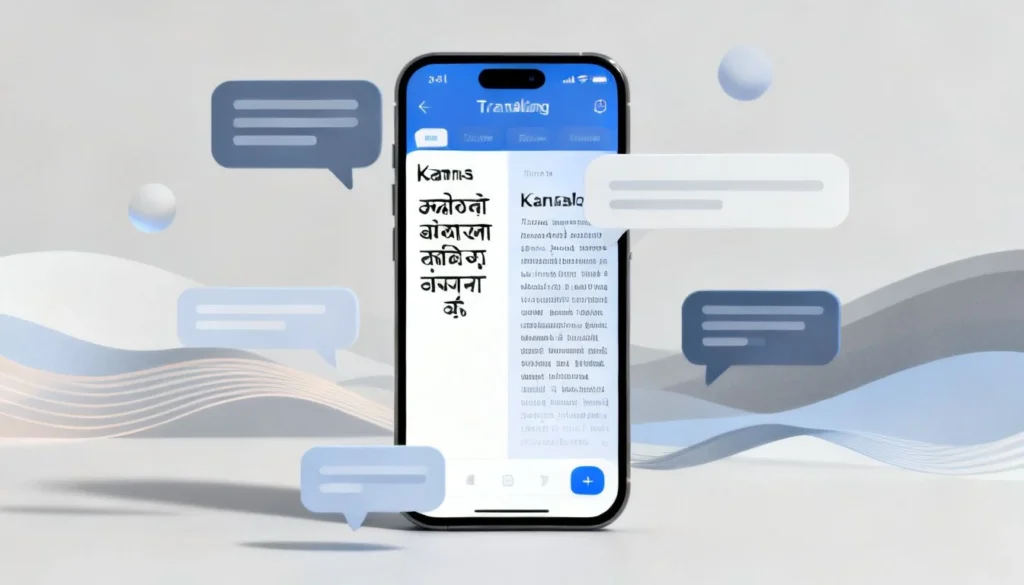
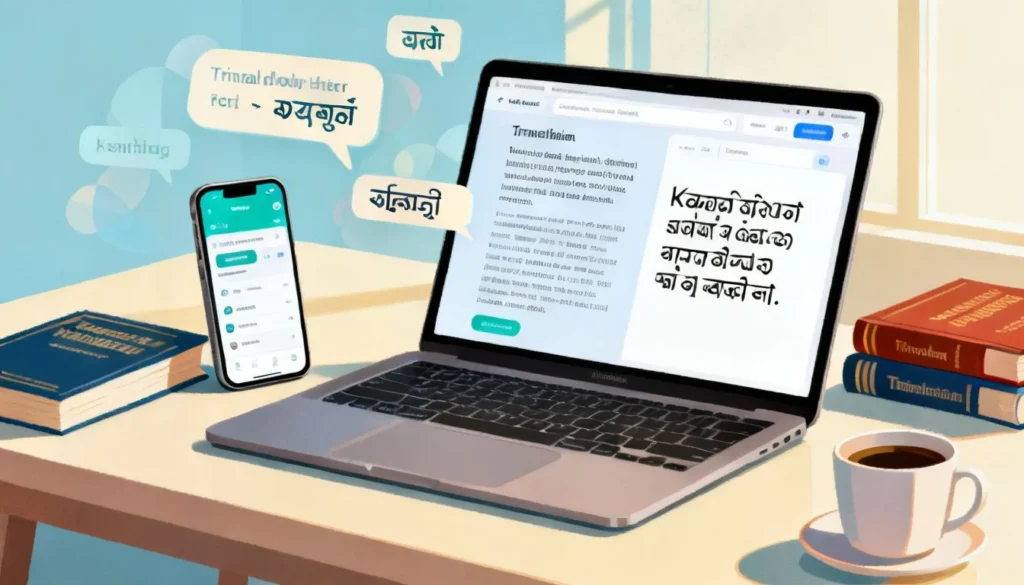
Gboard has a built-in Google Translate feature that works inside WhatsApp without leaving the chat. This is a real translation tool, not just transliteration. It converts meaning, not just script.
Here is how to use it:
- In WhatsApp, tap on the message you received in Kannada. Tap the “Copy” option.
- Tap the text input field to bring up Gboard.
- Look at the top row of icons on Gboard. Tap the three-dot menu, then drag the “Translate” icon onto your toolbar if it is not already there.
- Tap the Translate icon. A small translate bar opens at the top of the keyboard.
- Paste the copied Kannada text into the left box. The right box will auto-detect Kannada and show the English translation.
This is not a perfect literary translation. It handles everyday conversational Kannada well. Complex idioms or very formal Kannada might come out a bit stiff. But for understanding what your friend or family member is saying, it works reliably.
Pro Tip: The Translate feature in Gboard requires an internet connection to work. If you are on a slow network, the translation may lag. In that case, copy the text and open the standalone Google Translate app, which often works better with patchy connections.
Method 3: Using the Google Translate App’s “Tap to Translate”
If you regularly need to translate back and forth during long conversations, the full Google Translate app offers a “Tap to Translate” overlay that floats on top of WhatsApp.
- Install the Google Translate app from the Play Store.
- Open the app, tap the menu, go to Settings, and enable Tap to Translate.
- Set your source language as Kannada and the target as English (or vice versa).
- Now, inside WhatsApp, whenever you copy a message, a small floating Google Translate bubble appears. Tap it, and the translation pops up instantly.
This method does not require switching keyboards at all. It is the fastest way to read incoming Kannada messages if you are not comfortable reading the script yet. The downside is the floating bubble can sometimes get in the way of typing. You can drag it around the screen or dismiss it with a swipe.
Method 4: Third-Party Keyboards Like Microsoft SwiftKey
SwiftKey by Microsoft is a solid alternative if Gboard does not suit your style. It also supports Kannada transliteration, and some users find its prediction engine more accurate for Indian languages.
To set it up:
- Install Microsoft SwiftKey from the Play Store.
- Open the app and sign in (optional, but it syncs your learned words).
- Go to Languages, search for “Kannada,” and download the pack.
- Enable the keyboard from your phone’s settings.
- Inside WhatsApp, switch to SwiftKey, then swipe the spacebar to change to Kannada.
SwiftKey’s advantage is that it downloads full offline language packs. If you travel often to areas with spotty internet, SwiftKey keeps working for transliteration even when Gboard’s cloud-based suggestions might fail.
Common Problems and How to Fix Them
Even the best setup can hit a snag. Here are the issues I see most often and the quick fixes.
- Kannada option not showing up. Go back to Gboard settings, tap Languages, and make sure Kannada is actually downloaded. If the download failed silently, remove it and add it again.
- Keyboard switching back to English automatically. WhatsApp sometimes resets the keyboard language per chat. Before typing, always check the spacebar label. If it says “English,” long-press and switch back to Kannada.
- Transliteration is slow or inaccurate. Make sure you are typing the phonetic spelling as it sounds in Kannada, not the formal English spelling. “Bangalore” is “Bengaluru” in phonetic Kannada. Type “bengaluru” to get ಬೆಂಗಳೂರು.
- Translate icon missing from Gboard. Tap the arrow or three-dot menu on the Gboard toolbar. You can customize which icons appear. Drag “Translate” into the visible row.
Most of these are one-time fixes. Once your keyboard is set up properly, the experience is smooth.
Key Takeaways
- Gboard with Kannada transliteration is the easiest way to type Kannada in WhatsApp by writing English words phonetically.
- Gboard’s built-in Translate button lets you translate received Kannada messages to English without leaving WhatsApp.
- Google Translate’s Tap to Translate provides a floating bubble for instant translations during long chats.
- Microsoft SwiftKey is a strong offline alternative for Kannada transliteration.
- Setup takes under 5 minutes and works across all your messaging apps, not just WhatsApp.
Frequently Asked Questions
Q: Can I translate English to Kannada in WhatsApp without installing anything?
A: If your Android phone already has Gboard and the Kannada language pack pre-installed, you can. But most phones require you to manually add the Kannada transliteration keyboard in Gboard settings first. On iPhone, go to Settings, General, Keyboard, Keyboards, Add New Keyboard, and select Kannada.
Q: Does WhatsApp have a built-in translator for Kannada?
A: No. WhatsApp does not have its own translation feature. You must rely on your keyboard’s translation tool (like Gboard’s Translate button) or the Google Translate app’s Tap to Translate overlay.
Q: Why is my Gboard not showing Kannada even after adding it?
A: Long-press the spacebar or tap the globe icon to cycle through your installed keyboards. If Kannada still does not appear, go to Gboard settings, Languages, and confirm the Kannada pack shows as “Downloaded.” If it says “Downloading” or shows an error, remove it and re-add it.
Q: Can I use voice typing to speak in Kannada on WhatsApp?
A: Yes. In Gboard, switch to the Kannada keyboard, then tap the microphone icon. Speak your sentence in Kannada, and it will transcribe it in Kannada script. This feature requires an internet connection and works quite well for conversational Kannada.
Q: How do I translate an entire WhatsApp chat from Kannada to English?
A: There is no one-tap way to translate a full chat history. The practical method is to use Google Translate’s Tap to Translate and go message by message, or take screenshots and use the Google Translate app’s camera/image translation feature to read them.
Q: Will the other person know I am using a translator?
A: No. The translation and transliteration happen entirely on your phone. The person you are messaging sees only the final Kannada text you send or the English reply you type. There is no indication that a translation tool was used.
Q: Is Gboard safe to use for translating private WhatsApp messages?
A: Gboard’s translation feature sends the text you paste to Google’s servers for processing. For highly sensitive conversations, you may prefer to use an offline dictionary app and type manually. Google’s privacy policy states that translated text is not stored long-term, but the data does transit their servers.
Q: Can I use this same method for other Indian languages?
A: Absolutely. Gboard supports transliteration for Hindi, Tamil, Telugu, Malayalam, Marathi, Bengali, Gujarati, and many more. The setup process is identical. Just search for the language you need in Gboard’s language list and pick the transliteration option.
References & Further Reading
- Gboard Help Center: Add or change languages , Official Google documentation on setting up multilingual typing.
- Google Translate Help: Use Tap to Translate , Step-by-step guide for the floating translation bubble feature.
- Microsoft SwiftKey for Android: Language Support , Official SwiftKey language setup guide including Indian language transliteration.
- WhatsApp FAQ: How to format your messages , While not translation-specific, understanding WhatsApp’s text formatting helps when composing in mixed-language chats.
—
About This Article: This guide draws on hands-on testing across Android 14 and iOS 17 devices using the latest Gboard, SwiftKey, and Google Translate app versions as of early 2025. The steps reflect the current interface of these apps. Keyboard app interfaces can shift with updates, but the core setup logic for adding a transliteration keyboard remains consistent across versions.