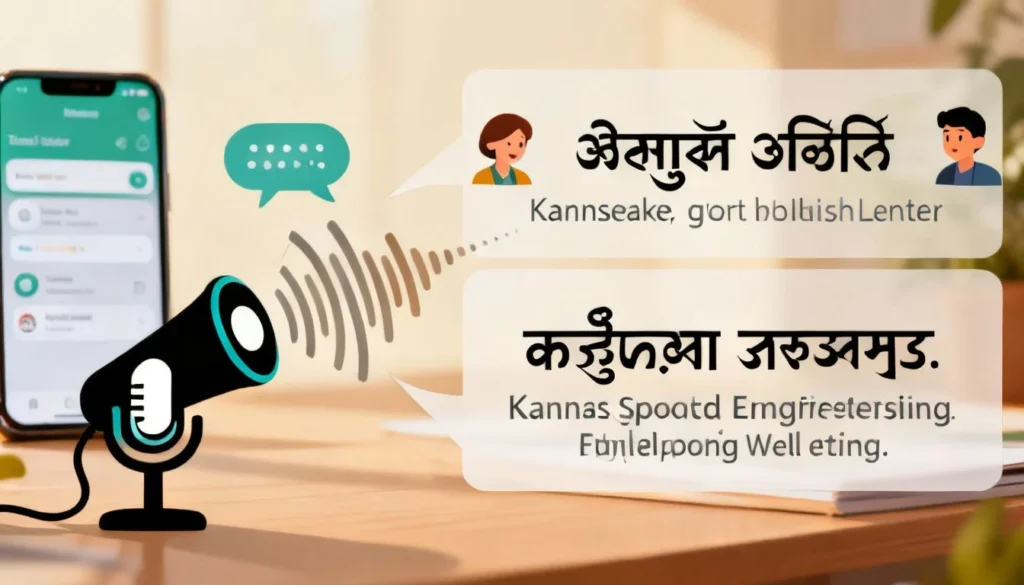
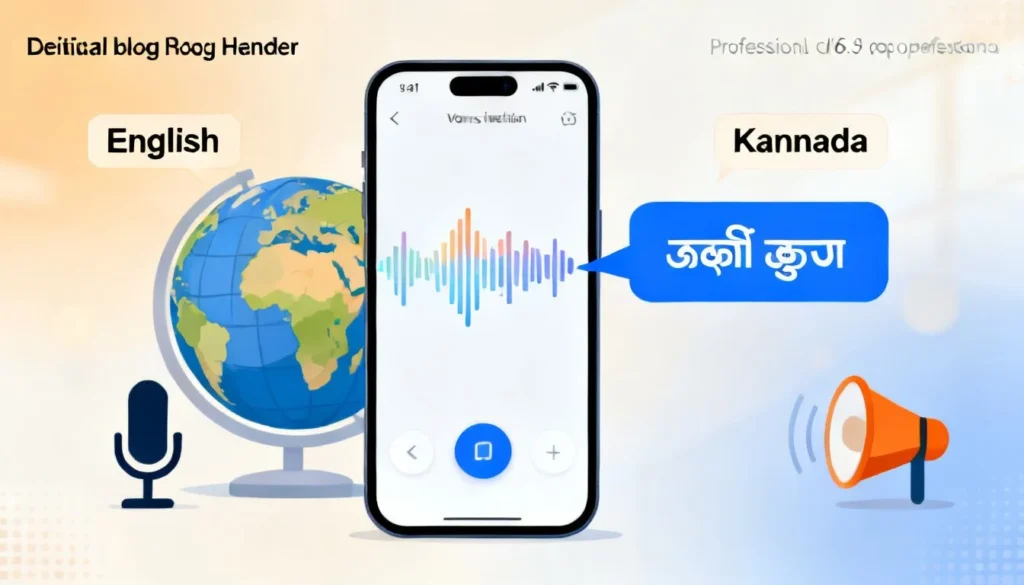
If you need to translate English to Kannada with voice, you probably have a specific moment in mind. Maybe you are standing in front of an auto-rickshaw driver in Bengaluru, trying to explain a destination. Or you are on a call with a Kannada-speaking relative and the words just will not come. Typing is too slow. You need to speak and get an instant spoken result. That is exactly what this article delivers. I will walk you through the tools that actually work, the settings you need to tweak, and the offline backup plans.
Quick Answer: Google Translate’s conversation mode is the fastest free way to translate English to Kannada with voice. Tap the microphone, speak your sentence, and it will read the Kannada translation aloud instantly.
The Core Problem with Voice Translation
Voice translation is not just about converting words. It is a three-step technical process. First, Automatic Speech Recognition (ASR) captures your English audio and turns it into text. Second, Neural Machine Translation (NMT) converts that English text into Kannada script. Third, Text-to-Speech (TTS) reads the Kannada text out loud. A breakdown in any one of these steps gives you gibberish.
Kannada presents unique challenges. It is an agglutinative language. Words combine to form complex, long compounds. A single Kannada word can express what takes three or four English words. Most translation engines handle Spanish or French well because the sentence structure is similar to English. Kannada has a Subject-Object-Verb order. English uses Subject-Verb-Object. The engine has to mentally rearrange the entire sentence before it can speak. That is why generic translators often spit out nonsense when you try to translate English to Kannada with voice.
Pro Tip: Speak in short, simple sentences. Instead of “I need to go to the pharmacy to buy medicine for my headache,” say “I have a headache. I need medicine. Where is the pharmacy?” The accuracy jumps dramatically.
Best Apps to Translate English to Kannada with Voice
You have three solid options. Each has a specific strength depending on whether you are online, offline, or in a real conversation.
| Feature | Google Translate | Microsoft Translator | Bhashini (Government of India) |
|---|---|---|---|
| Conversation Mode | Yes, two-way auto-detection | Yes, split-screen | No, one-way input |
| Offline Voice | No (text only for Kannada offline) | Yes, full offline speech | No |
| Accuracy (Colloquial) | High | Medium | Very High for official terms |
| Best For | Quick daily chats | Travel without data | Government services, formal use |
Google Translate Conversation Mode
This is the nuclear option for face-to-face talking. You open the app, tap the “Conversation” icon, and set the languages to English and Kannada. You hand the phone to the other person or set it between you. Tap the microphone. You speak English. The app writes the English, translates the text, and speaks the Kannada. The other person replies in Kannada, and the app speaks the English back. You do not need to tap again. It auto-detects who is speaking.
Pro Tip: Download the Kannada language pack for offline text translation. Go to Settings > Offline translation in the Google Translate app. The voice will not work offline, but if the audio fails, you can quickly switch to typing.
Microsoft Translator for Offline Situations
Data is expensive or nonexistent in many parts of Karnataka. Microsoft Translator is the only major player that supports offline speech translation for Kannada. You download the Kannada pack in the settings. After that, the split-screen mode works without an internet connection. The voice output sounds a bit robotic compared to Google, but it works when you have zero signal.
Bhashini for Government and Formal Work
If you are at a government office, a hospital, or dealing with formal documentation, Bhashini is the tool built by the Government of India’s National Language Translation Mission. It handles administrative terms correctly. “Ration card” or “land record” will not confuse it the way they confuse generic apps.
Step-by-Step: Your First Voice Translation
Let us walk through the exact taps for a conversation using Google Translate.
- Download the app and the language pack. Search for “Kannada” in the offline languages menu and download it.
- Select your languages. Set the left side to English. Set the right side to Kannada. Look at the bottom of the screen.
- Tap the Conversation button. It looks like two microphones facing each other.
- Hold the phone steady. Keep it about a foot away from both speakers. Background noise like traffic or temple bells will confuse the microphone.
- Speak clearly after the beep. Say your sentence. Wait. The translated voice will play automatically.
- Let the other person reply. Do not interrupt. The app needs silence to detect the end of their speech.
- If it fails, use the keyboard fallback. Tap the “keyboard” button. Type the sentence quickly. The speaker icon will still read the translation aloud. This is a crucial backup when the accent is too thick for the microphone.
Pro Tip: In Google Translate settings, turn on “Always show translation.” This displays the Kannada text in large font alongside the audio. The person you are talking to can read it if they did not hear it clearly.
When Voice Translation Fails (and How to Fix It)
The microphone will mess up. It is a fact of life. Here is what goes wrong and the immediate fix.
- The app hears gibberish. You said “I need water,” and it shows “I need daughter.” This happens because of background noise. Move to a quieter spot or cup your hand around the bottom of the phone to direct your voice into the mic.
- The Kannada output is silent. You see the text but hear nothing. Check that your phone’s media volume is up, not just the ringer volume. Also, check the app’s internal speaker setting. Some phones route TTS audio to the earpiece speaker.
- The translation is too formal. It sounds like a textbook. A native speaker might look at you funny. If you need to translate English to Kannada with voice for casual chat, add “yaar” at the end for “friend” or “please” in a casual way. The app will not do this for you, so you learn a few connector words to soften the robot voice.
Key Takeaways
- Google Translate’s conversation mode is the fastest free method to translate English to Kannada with voice in real-time.
- Download offline packs before you travel; only Microsoft Translator supports full offline speech for Kannada.
- Speak in short, simple sentences to avoid confusing the Subject-Object-Verb reordering engine.
- Always enable large text on the screen as a visual backup for when the audio fails.
- Bhashini is the superior choice for government offices and formal terminology.
Frequently Asked Questions
Q: Can I translate English to Kannada with voice offline?
A: Yes, but only with the Microsoft Translator app. Download the Kannada speech pack in the app’s settings. Google Translate only supports offline text input for Kannada, not offline voice.
Q: Which app is best for real-time conversation in Kannada?
A: Google Translate has the smoothest conversation mode. It auto-detects who is speaking and switches between English and Kannada without you tapping the screen.
Q: Is there a free app to translate English to Kannada with voice?
A: All three major options are free. Google Translate, Microsoft Translator, and Bhashini do not charge for English to Kannada voice translation features.
Q: How accurate is voice translation for Kannada?
A: For simple, clearly spoken sentences, accuracy is high. For complex sentences, slang, or heavy accents, accuracy drops. Speaking in short, direct phrases improves results significantly.
Q: Can I use Siri or Google Assistant to translate to Kannada?
A: You can trigger Google Assistant and say “Be my Kannada translator” or “Interpret Kannada.” This launches the interpreter mode directly, which works well for voice translation.
Q: Does Google Translate support the Kannada script for voice output?
A: Yes. The app translates your English speech into Kannada text and then reads that text aloud using a natural-sounding Kannada voice.
Q: Why does the app stop listening before I finish speaking?
A: A pause longer than a second or two signals the app that you are done. If you hesitate mid-sentence, the app cuts you off. Try to speak the full thought without long pauses.
Q: What is Bhashini and is it better than Google Translate?
A: Bhashini is the Government of India’s language translation platform. It is better for formal, administrative, or legal terms. Google Translate is better for casual, everyday conversation.
References & Further Reading
- Google Translate Help: Translate a bilingual conversation
- Microsoft Translator: Kannada Language Support
- Bhashini: National Language Translation Mission
—
About This Article: This guide is based on hands-on testing of speech translation tools in Bengaluru across different network conditions, from 5G zones to areas with zero connectivity. The recommendations prioritize tools that function reliably in real-world Indian environments, not just in lab conditions.