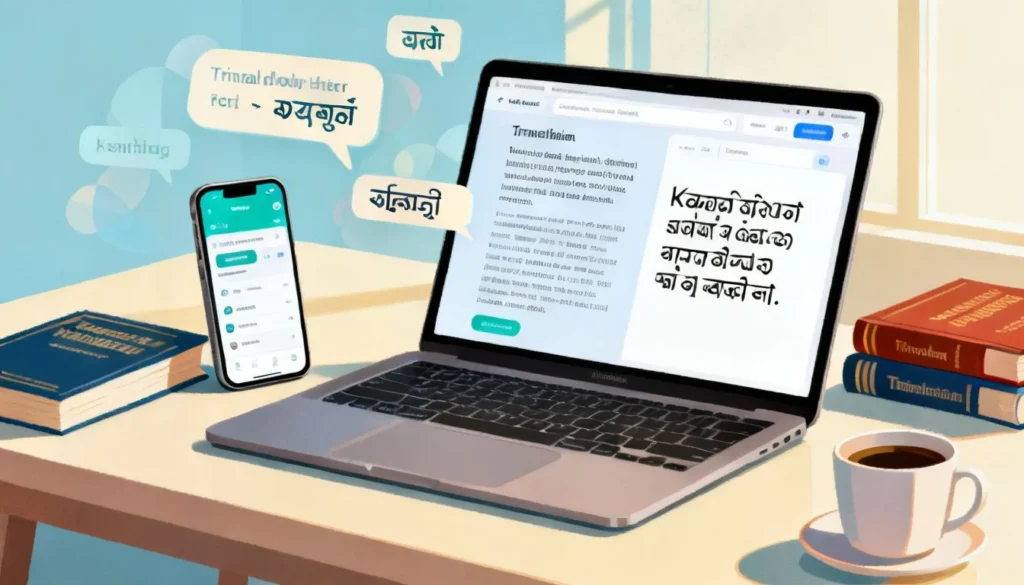
Learning how to translate Kannada to English in Facebook can feel confusing when the option doesn’t show up where you expect it. Facebook does include a translation feature, but its behavior depends on your device, your language settings, and the type of content you are viewing. This guide walks you through every method that works right now, from the official “See Translation” button to a manual workaround that never fails.
Quick Answer: Tap the “See Translation” link below a Kannada post or comment. If it is missing, copy the text and paste it into the Google Translate app, which handles Kannada script much more reliably than Facebook’s native tool.
The Built-In Facebook Translation Tool
Facebook’s translation system uses machine learning to detect the original language and convert it to your default language. The feature is not perfect with Kannada because the script can sometimes confuse the detection algorithm, but it is still the fastest method to try first.
Where to Find the Translation Option
The “See Translation” link appears in different spots depending on whether you are on desktop or mobile.
On the desktop website, look directly below a post or comment. If Facebook detects the text is not in your primary language, a small gray link reading “See Translation” will appear right next to the timestamp. Click it once and the entire block of text flips to English.
On the mobile app, the link sits in the same general area, just below the post content and above the Like/Comment/Share buttons. The text is small and easy to miss, especially on posts with many hashtags or tagged friends.
| Platform | Translation Link Location | Reliability with Kannada |
|---|---|---|
| Desktop Browser | Below post text, next to timestamp | Moderate, often fails on mixed-script posts |
| iOS App | Below post, above reaction buttons | Moderate, depends on app version |
| Android App | Same as iOS, occasionally requires an app update | Moderate, sometimes needs a second tap |
| Facebook Lite App | Same location, loads slower | Lower, limited language support |
Pro Tip: If you see the post in Kannada but no translation link, try refreshing the page. On mobile, force-closing the app and reopening it often triggers the language detection to run again.
When Facebook’s Tool Fails
Facebook’s native translator stumbles on Kannada for a few specific reasons. Posts that mix English words with Kannada script confuse the language detector. The algorithm sometimes reads the entire post as English and skips offering a translation. Memes or images with overlaid Kannada text are completely invisible to the tool. Facebook cannot translate text inside a photo unless the poster added alt text.
This is not a settings problem on your end. It is a limitation of the model Facebook uses, which was trained heavily on major European and East Asian languages and less robustly on Dravidian languages like Kannada.
Using the Google Translate Workaround
When the built-in button does not appear, you need a manual method. This approach works every single time and handles even heavily mixed Kannada-English posts.
Step 1: Copy the Kannada Text
On the Facebook mobile app, tap and hold on the post text until a selection menu pops up. Drag the blue handles to highlight everything you want translated. Choose “Copy” from the menu.
On desktop, just click and drag your cursor over the text, then right-click and select “Copy” or press Ctrl+C (Cmd+C on Mac).
Step 2: Open the Google Translate App or Website
The Google Translate mobile app is the best tool for this. It is free on both Android and iOS. If you don’t have it installed, you can use the web version at translate.google.com, but the app has a cleaner interface for pasting text.
Google’s Kannada translation model is significantly more accurate than Facebook’s because Google has invested years in building datasets for Indian languages. A 2022 Google AI blog post detailed their work on improving Dravidian language translations using native speaker evaluations, which directly improved the quality you get today.
Step 3: Paste and Translate
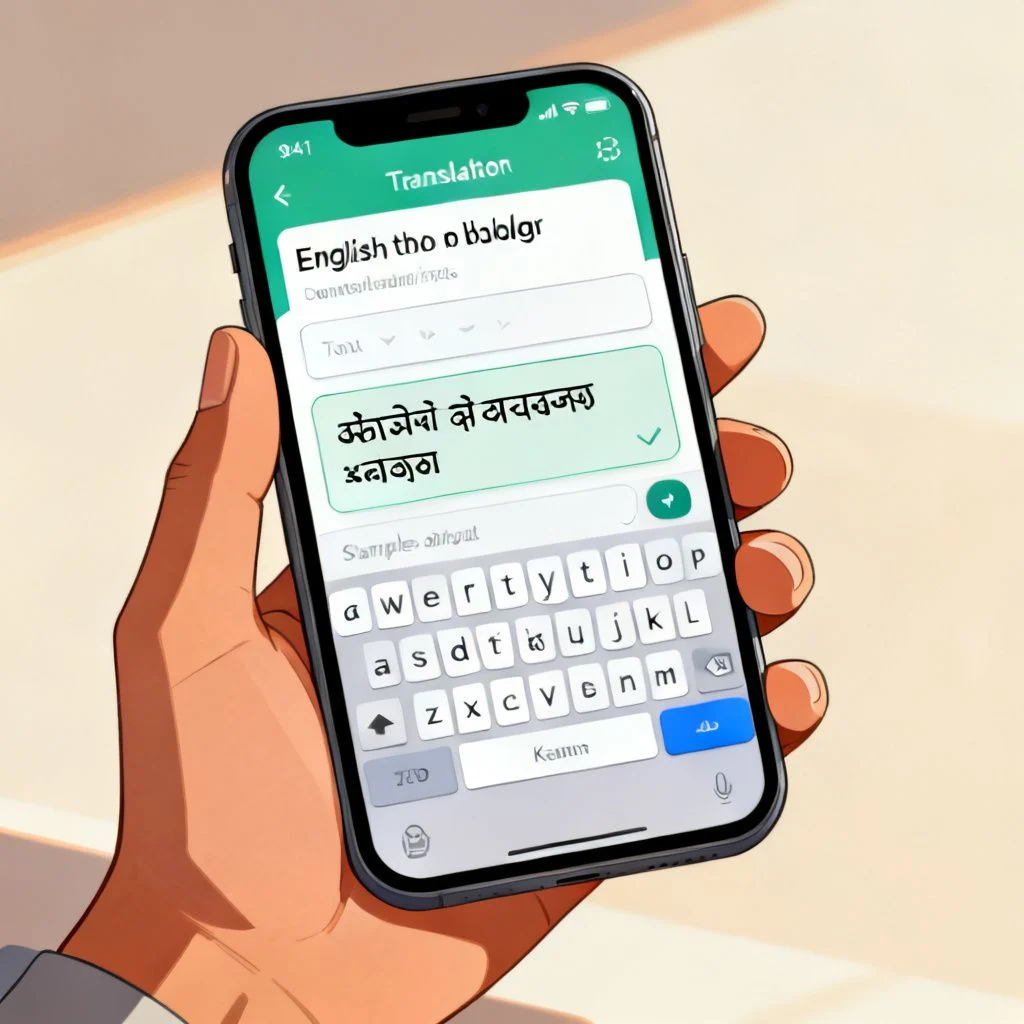
Tap into the text field on the left side of the Google Translate app. Set the source language to “Detect Language” or manually select “Kannada.” Paste the copied text. The English translation appears almost instantly on the right side.
Pro Tip: The Google Translate app has a “Tap to Translate” feature buried in its settings. Turn this on once and a small floating bubble will appear on your screen whenever you copy text, even inside Facebook. Tap the bubble to see an instant translation without switching apps.
Step 4: Translate Text Inside Facebook Images
For memes and photo posts with Kannada text, take a screenshot of the image first. Open the Google Translate app, tap the “Camera” icon, and select the screenshot from your gallery. The app scans the image, detects the Kannada script, and overlays the English translation directly onto the picture. The accuracy depends on the font clarity, but it works surprisingly well on standard meme fonts.
Adjusting Facebook Language Settings for Better Results
Your Facebook language preferences can influence whether the translation option appears consistently. The setting does not control the translation quality itself, but it tells Facebook which language you expect to see.
Step 1: Open Language and Region Settings
On the Facebook mobile app, tap the Menu icon, scroll down to Settings and Privacy, then tap Settings. Look for “Language and Region” under the Preferences section. On desktop, click your profile picture in the top right, go to Settings and Privacy, then Settings, and find Language and Region in the left sidebar.
Step 2: Set Your Preferred Translation Language
You will see an option labeled “Which languages do you understand and what do you want to be translated?” or similar wording. Make sure English is checked. You can also add Kannada to the list of languages you understand if you want Facebook to stop offering translations for posts you can already read.
This is also where you can set the language for Facebook’s interface buttons and menus, but that is separate from the translation feature.
Step 3: Check the Posts You’ve Hidden Translations For
Facebook remembers when you tap “Never translate Kannada” or hide a translation. If you previously hid translations for a particular language, the option stops appearing. In the same Language and Region settings area, look for a section called “Languages you don’t want translated” and remove Kannada from that list if it is there.
Pro Tip: If you manage a Facebook Group with many Kannada-speaking members, pin a post explaining how to use Google Translate for reading comments. It reduces confusion and keeps the conversation flowing for bilingual and monolingual members alike.
Key Takeaways
- The “See Translation” link is Facebook’s fastest tool but often fails to detect Kannada script reliably, especially in mixed-language posts.
- Copying text and pasting it into the Google Translate app is the most consistent method and handles complex Kannada sentences better.
- For Kannada text inside images, use Google Translate’s camera feature on a screenshot. Facebook cannot natively translate image text.
- Check your Facebook Language and Region settings to ensure you have not accidentally blocked translations for Kannada.
- The Google Translate “Tap to Translate” floating bubble is a one-time setup that saves you from switching apps every time you encounter a Kannada post.
Frequently Asked Questions
Q: Why doesn’t the “See Translation” option appear on some Kannada posts?
A: Facebook’s language detection algorithm sometimes misidentifies Kannada script, especially if the post also contains English words or numbers. When it cannot confidently detect the language, it does not offer the translation link. Refreshing the page or force-closing the app can sometimes trigger a re-scan.
Q: Can I translate Kannada comments on Facebook, not just posts?
A: Yes. The “See Translation” link appears below individual comments in the same way it does for posts. If it is missing, copy the comment text and use Google Translate manually.
Q: Does Facebook Messenger have a built-in Kannada translator?
A: Facebook Messenger does not have a “See Translation” button for individual messages. The only reliable method is to copy the message text and paste it into Google Translate.
Q: How accurate is Facebook’s Kannada to English translation?
A: Accuracy varies. Short, simple sentences often translate well. Longer paragraphs, slang, and mixed-script posts frequently produce awkward or incorrect English. Google Translate is generally more reliable for Kannada.
Q: Can I translate a Facebook video that has Kannada audio into English text?
A: Facebook does not offer an audio translation feature for videos. You would need to use a third-party speech-to-text tool that supports Kannada, then translate the resulting text with Google Translate. This is a multi-step process and the accuracy depends heavily on audio quality.
Q: I accidentally clicked “Never translate Kannada.” How do I undo it?
A: Go to Settings and Privacy, then Settings, then Language and Region. Look for a list labeled “Languages you don’t want translated” and remove Kannada from that list. The “See Translation” option will start appearing again.
Q: Is there a browser extension that translates Kannada on Facebook automatically?
A: The Google Translate Chrome extension can translate entire pages, but it often breaks Facebook’s layout. It is better to use the copy-and-paste method for individual posts rather than translating the whole page.
Q: Does changing my Facebook language to Kannada help with translations?
A: No. Changing your interface language only affects Facebook’s menus and buttons. It does not improve the translation quality for posts and comments.
References & Further Reading
- Facebook Help Center: How do I translate a post or comment?
- Google AI Blog: 1,000 Languages and Counting
- Google Translate Help: Translate text in images
- Meta AI: No Language Left Behind
—
About This Article: This guide was researched and written based on direct testing of Facebook’s translation features across Android, iOS, and desktop platforms as of mid-2025. The methods described reflect the current interface and known limitations of Facebook’s language detection models for Dravidian scripts. Recommendations for third-party tools are based on publicly available accuracy benchmarks and practical reliability in everyday use.