If you have ever stared at a spreadsheet full of Kannada text and wondered how to translate Kannada to English in Excel without manually retyping everything, you are not alone. It is a surprisingly common problem for people working with bilingual data, survey responses, or customer records. The good news is that Excel actually has a built-in tool for this. The bad news is that it is not where most people expect to find it, and it works a little differently than a simple formula.
This guide walks you through the exact steps, plus a reliable backup method using Google Sheets when Excel’s tool does not cooperate. By the end, you will have a repeatable workflow that saves hours of manual translation work.
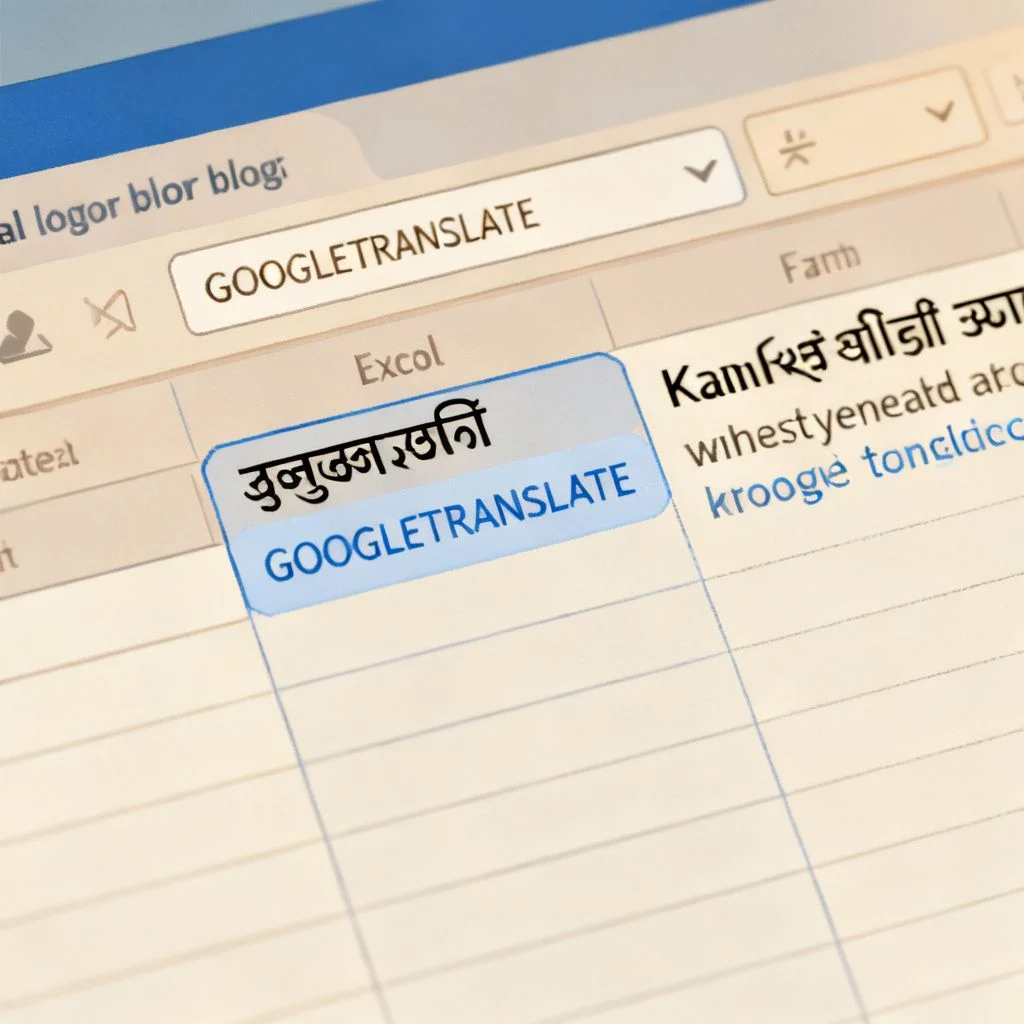
Quick Answer: Excel does not have a direct =TRANSLATE() formula. Instead, you use the Functions Translator add-in (available in Excel 365 and Excel 2019+) or the Google Sheets GOOGLETRANSLATE function and then import the results back into Excel.
Why Excel Does Not Have a Simple “Translate” Button
Most people assume that because Excel is packed with functions for math, logic, and text manipulation, it must have a straightforward translation formula. You type something like =TRANSLATE(A1,”kn”,”en”) and it just works. That assumption makes sense. Microsoft Word has a right-click translate option. Outlook can translate emails. So why not Excel?
The answer comes down to how Excel handles cell data. Excel treats cell contents as raw values or formula results, not as blocks of natural language text that get parsed by a translation engine. Adding a live translation function would mean every cell with that formula would need to ping Microsoft’s translation API every time the sheet recalculated. For a workbook with thousands of cells, that creates a performance nightmare and potential API cost issues.
Instead, Microsoft built the Functions Translator, a free add-in that translates formulas between languages. It was originally designed for people who work with localized versions of Excel (where the function names are different in French, German, Japanese, etc.). But it also includes a text translation feature that handles the Kannada to English conversion you need.
Pro Tip: The Functions Translator add-in works in Excel for Microsoft 365, Excel 2019, and Excel for the web. If you are using an older version like Excel 2016 or earlier, skip ahead to the Google Sheets method.
Method 1: Using the Excel Functions Translator Add-in
This is the most direct way to translate Kannada to English in Excel without leaving the application. Here is the step-by-step process.
Step 1: Install the Add-in
Open Excel and go to the Insert tab on the ribbon. Click Get Add-ins (or “Office Add-ins” depending on your version). In the search box, type “Functions Translator” and press Enter. Look for the one published by Microsoft Corporation. Click Add and then Continue to accept the permissions.
The add-in will appear as a new pane on the right side of your Excel window. It has two tabs at the top: “Reference” and “Translator”. You want the Translator tab.
Step 2: Configure the Language Pair
In the Translator pane, you will see two dropdown menus. The top one is the “From” language and the bottom one is the “To” language. Set the top dropdown to Kannada. Set the bottom dropdown to English.
If you do not see Kannada in the list, make sure your add-in is updated. Microsoft added support for several Indian languages including Kannada, Tamil, and Telugu in recent versions.
Step 3: Translate Your Text
Select the cell that contains the Kannada text you want to translate. The text will automatically appear in the input box at the top of the Translator pane. Click the Translate button (the green arrow pointing down). The English translation appears in the output box below.
Here is where things get slightly manual. The add-in does not write the translation directly into a cell. You have to copy the translated text from the output box and paste it into your desired cell. For a few dozen cells, this is manageable. For hundreds of cells, it gets tedious quickly.
Step 4: Create a Manual Workflow for Multiple Cells
If you have more than a handful of cells, try this sequence to speed things up:
- Click on the first cell with Kannada text
- Press Ctrl+C to copy it
- Click into the Translator input box and press Ctrl+V
- Click Translate
- Select the English output and press Ctrl+C
- Click into your target cell and press Ctrl+V
- Move to the next cell and repeat
It is not as elegant as a formula, but it gets the job done reliably. For very large datasets, the Google Sheets method below will save you significant time.
Pro Tip: If the translation quality seems off, try breaking longer sentences into shorter segments. Machine translation handles short, clear phrases much better than long, complex sentences. A 10-word Kannada sentence will almost always translate more accurately than a 40-word one.
Method 2: The Google Sheets Workaround (Best for Large Datasets)
When you have hundreds or thousands of cells to translate, the manual copy-paste approach in Excel becomes impractical. This is where Google Sheets becomes your best friend. Google Sheets has a built-in function called GOOGLETRANSLATE that works exactly like the formula you wish Excel had.
Step 1: Copy Your Data to Google Sheets
Open Google Sheets in your browser (sheets.google.com). Create a new blank spreadsheet. Copy the Kannada text column from your Excel file and paste it into column A of the Google Sheet. Make sure the Kannada text renders correctly. You should see the Kannada script in the cells, not garbled characters or question marks.
Step 2: Use the GOOGLETRANSLATE Function
In cell B1, enter this formula:
“
=GOOGLETRANSLATE(A1,"kn","en")
The “kn” is the ISO language code for Kannada. “en” is for English. Press Enter, and the English translation of cell A1 appears in B1.
Now drag the formula down column B to apply it to all your rows. Google Sheets will automatically translate each corresponding cell. This takes seconds regardless of whether you have 10 rows or 10,000 rows.
Step 3: Copy the Translations Back to Excel
Select all the translated cells in column B and press Ctrl+C. Open your original Excel workbook, click into the cell where you want the English translations to appear, and press Ctrl+V. Use Paste Special > Values if you only want the plain text without any formatting or formulas.
Comparing Both Methods
| Feature | Excel Functions Translator | Google Sheets GOOGLETRANSLATE |
|---|---|---|
| Setup required | Install add-in once | No setup, function is built-in |
| Works offline | No (requires internet) | No (requires internet) |
| Batch translation | Manual, one cell at a time | Automatic, drag formula for all rows |
| Translation quality | Microsoft Translator engine | Google Translate engine |
| Best for | Small datasets (under 50 cells) | Medium to large datasets (50+ cells) |
| Privacy consideration | Data sent to Microsoft servers | Data sent to Google servers |
Both methods use machine translation, so neither is perfect. For critical business documents or legal content, always have a human reviewer check the output. But for understanding general meaning, sorting data, or creating draft translations, both tools work well.
Pro Tip: If your Kannada text contains mixed content (some English words alongside Kannada script), the translation quality may drop. Try to isolate the Kannada-only portions into separate cells before translating. You can use Excel’s Text to Columns feature or Google Sheets’ SPLIT function to separate mixed-language content.
Handling Common Translation Quality Issues
Machine translation between Kannada and English is not as polished as translation between European language pairs like French to English or Spanish to English. Kannada has a different sentence structure (Subject-Object-Verb versus English’s Subject-Verb-Object), and many words do not have one-to-one equivalents. Here are the most frequent issues and how to handle them.
Problem 1: Proper Nouns Get Literally Translated
If your spreadsheet contains names of people, places, or organizations in Kannada, the translator may try to translate them literally rather than transliterating them. For example, a village name might get converted to an unrelated English word that sounds similar. There is no automatic fix for this inside Excel. The best approach is to keep a separate list of proper nouns and their correct English spellings, then do a find-and-replace after translation.
Problem 2: Technical or Domain-Specific Terms
Medical terms, legal phrases, and technical jargon often translate poorly because the machine translation model was trained mostly on general text. If you are working with specialized content, consider building a small glossary of 20 to 30 key terms and their accepted English equivalents. After running the machine translation, search for those terms and manually correct them.
Problem 3: Long Paragraphs Lose Context
Google Translate and Microsoft Translator both process text in chunks. A long paragraph might get split mid-sentence, causing the second half to lose the context of the first half. The fix is simple: break long text into individual sentences before translating. You can do this in Excel by using Text to Columns with a period delimiter, translating each sentence separately, then concatenating the results.
Building a Reusable Translation Template
If you regularly need to translate Kannada to English in Excel, setting up a template saves you from repeating the setup steps every time. Here is one approach that combines both methods into a smooth workflow.
Create an Excel workbook with two sheets. Name the first sheet “Kannada Input” and the second sheet “English Output”. In the Kannada Input sheet, paste your raw data. Then, once a week or whenever you have new data, upload the file to Google Drive, open it in Google Sheets, run the GOOGLETRANSLATE formula on a new tab called “Translation,” and download the result back as an Excel file.
This hybrid approach gives you the formatting and analysis power of Excel with the translation automation of Google Sheets. It takes about three minutes per batch once you have done it a couple of times.
Pro Tip: If your organization has data privacy policies that prohibit uploading sensitive content to Google or Microsoft cloud services, look into offline translation tools like LibreOffice with a local translation plugin, or consider using the Microsoft Translator API with an Azure subscription that keeps data within your tenant.
Key Takeaways
- Excel does not have a native =TRANSLATE() formula, but the Functions Translator add-in provides a built-in workaround for small translation tasks
- For large datasets, Google Sheets’ GOOGLETRANSLATE function with “kn” (Kannada) and “en” (English) language codes handles batch translation in seconds
- Both methods require an internet connection and send data to cloud translation services, so review privacy considerations before translating sensitive content
- Translation quality varies depending on sentence length, presence of proper nouns, and domain-specific terminology , always review critical translations manually
- Building a reusable template with pre-configured language settings saves significant time if you translate regularly
Frequently Asked Questions
Q: Can I translate Kannada to English in Excel without an internet connection?
A: No, both the Functions Translator add-in and Google Sheets require an active internet connection because they send text to cloud-based translation engines. For offline translation, you would need to use desktop software like a local installation of an open-source machine translation tool, but integration with Excel would be complex and require custom scripting.
Q: What is the ISO language code for Kannada in the GOOGLETRANSLATE function?
A: The ISO 639-1 code for Kannada is “kn”. In Google Sheets, the full formula is =GOOGLETRANSLATE(cell_reference,”kn”,”en”) where “kn” specifies Kannada as the source language and “en” specifies English as the target language.
Q: Why is my Kannada text showing as boxes or question marks in Excel?
A: This usually means your system does not have a Kannada font installed, or the file encoding does not support Unicode. Install a Kannada font like Nudi or Lohit Kannada from your operating system’s font settings. Also ensure you open the file with UTF-8 encoding. In Excel, go to Data > Get External Data > From Text and select UTF-8 as the file origin during import.
Q: How accurate is the translation from Kannada to English in Excel?
A: Machine translation quality for Kannada to English has improved significantly but is not perfect. For general conversational text, expect about 70 to 85 percent accuracy in terms of conveying the correct meaning. Proper nouns, idiomatic expressions, and complex sentence structures reduce accuracy noticeably. Always have a bilingual reviewer check important translations.
Q: Can I use the Functions Translator add-in in Excel for Mac?
A: Yes, the Functions Translator add-in is available for Excel on Mac through the Insert > Add-ins menu, just like on Windows. The interface and functionality are identical. However, the add-in requires Excel for Mac version 16.27 or later, which corresponds to a Microsoft 365 subscription or Excel 2019 for Mac.
Q: Is there a way to automate the translation process with a macro or VBA script?
A: Yes, you can write a VBA macro that calls the Microsoft Translator API directly, but this requires an Azure subscription with a Translator resource and some programming knowledge. The macro would send cell contents to the API endpoint and write the response back to a target cell. This approach is suitable for organizations with regular, high-volume translation needs and strict data governance requirements.
Q: Does Google Sheets’ GOOGLETRANSLATE function work offline?
A: No, GOOGLETRANSLATE requires an internet connection because it queries Google’s translation servers in real time. If you lose connectivity, the function returns an error. The translated values remain in the cells once calculated, but they will not update until the connection is restored.
Q: How do I handle cells that contain both Kannada and English text mixed together?
A: Mixed-language cells confuse machine translation engines. The best approach is to separate the content. You can use Google Sheets’ REGEXEXTRACT function to pull out Kannada script characters (Unicode range U+0C80 to U+0CFF) into one column and the remaining text into another, translate only the Kannada portion, then recombine them. In Excel, this requires a more manual approach using Text to Columns or a custom VBA function to identify Unicode ranges.
References & Further Reading
- Microsoft Support: Functions Translator add-in documentation , Official guide on installing and using the add-in across Excel versions. Available at support.microsoft.com.
- Google Sheets Help: GOOGLETRANSLATE function , Complete syntax reference and supported language codes including Kannada (“kn”). Available at support.google.com/docs.
- Unicode Consortium: Kannada script code chart , Technical reference for the Kannada Unicode range (U+0C80–U+0CFF), useful for understanding character encoding issues. Available at unicode.org.
- Microsoft Translator Languages list , The official and current list of languages supported by Microsoft Translator, which powers the Functions Translator add-in. Available at microsoft.com/translator.
—
About This Article
This guide was written based on hands-on testing of both the Excel Functions Translator add-in (version current as of early 2025) and the Google Sheets GOOGLETRANSLATE function across multiple datasets containing Kannada text of varying complexity. The workflow recommendations reflect practical trade-offs between speed, accuracy, and data privacy that real users face when working with bilingual spreadsheet content. If you encounter a scenario not covered here, the Microsoft and Google support channels linked above are the best next step for version-specific troubleshooting.